1exchange (1X) is a digital asset exchange and investment platform designed to provide investors with secure and compliant access to Real World Asset (RWA) listings and secondary market trading. The platform supports both primary market investments (Listings) and secondary market trading (Trading), enabling users to subscribe to new offerings and subsequently trade eligible assets in an orderly marketplace.
This guide explains how to register, secure your account, manage assets, invest in listings, and trade on the platform.
When accessing the 1exchange Client Portal for the first time, users are required to complete the registration process. Currently, registration is supported via email address only.
1. Navigate to 'Open Account' to open the registration page.
2. Enter your email address and password.
3. Click Sign Up.
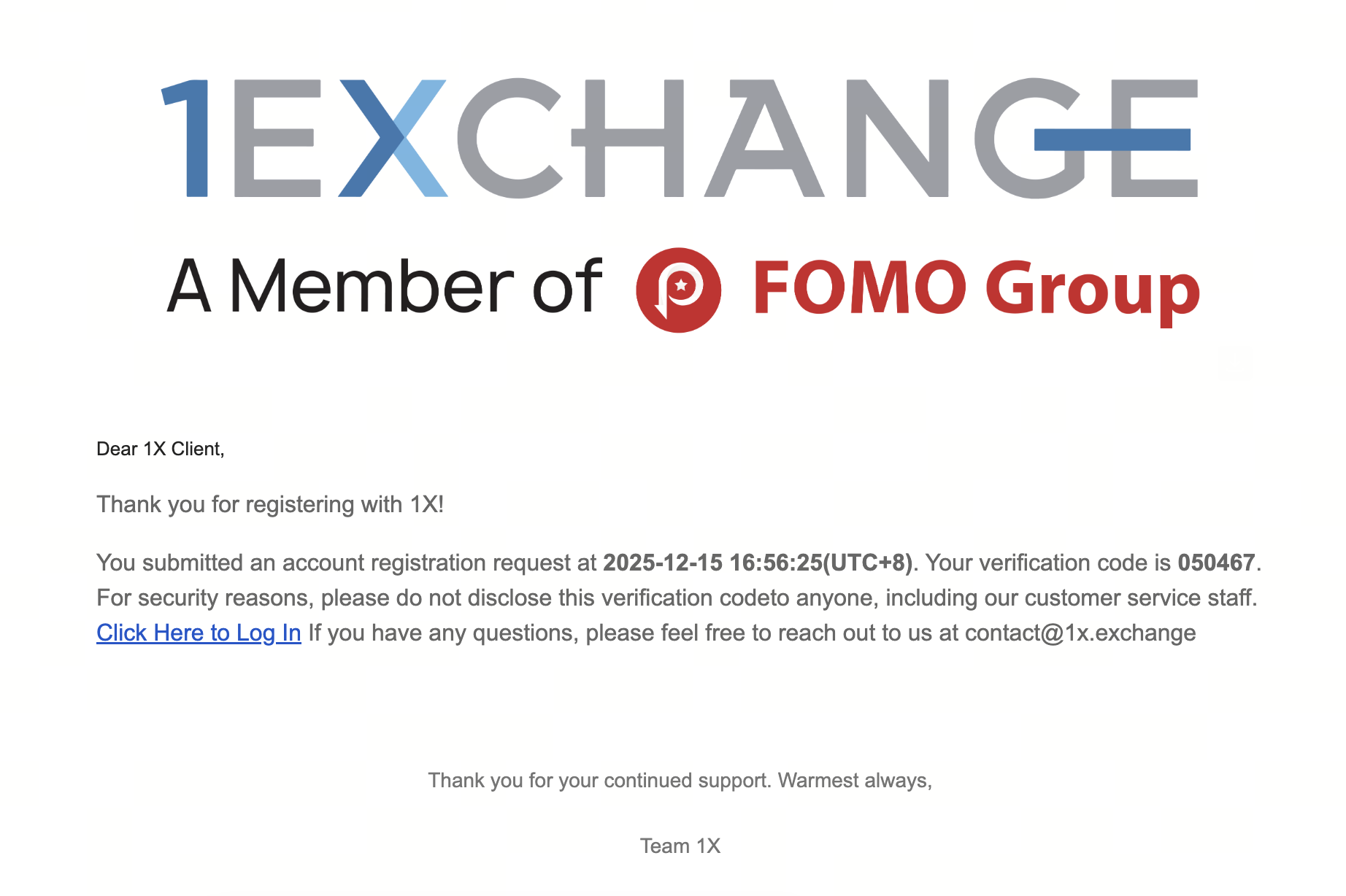
A verification code will be sent to your registered email address. Please check your inbox and enter the verification code on the registration page to complete the registration.
.png)
Once verified, your account will be successfully created, and you may proceed to the next steps.
When you finish the registration as an investor on this platform, in order to ensure the security and compliance of the transaction, while protecting your own legitimate rights and interests, according to the relevant regulations and platform requirements, you need to complete the KYC (Know Your Customer) identity verification process. This step is an important part of the platform to verify the identity of investors, which can create a more secure and reliable investment environment for you.
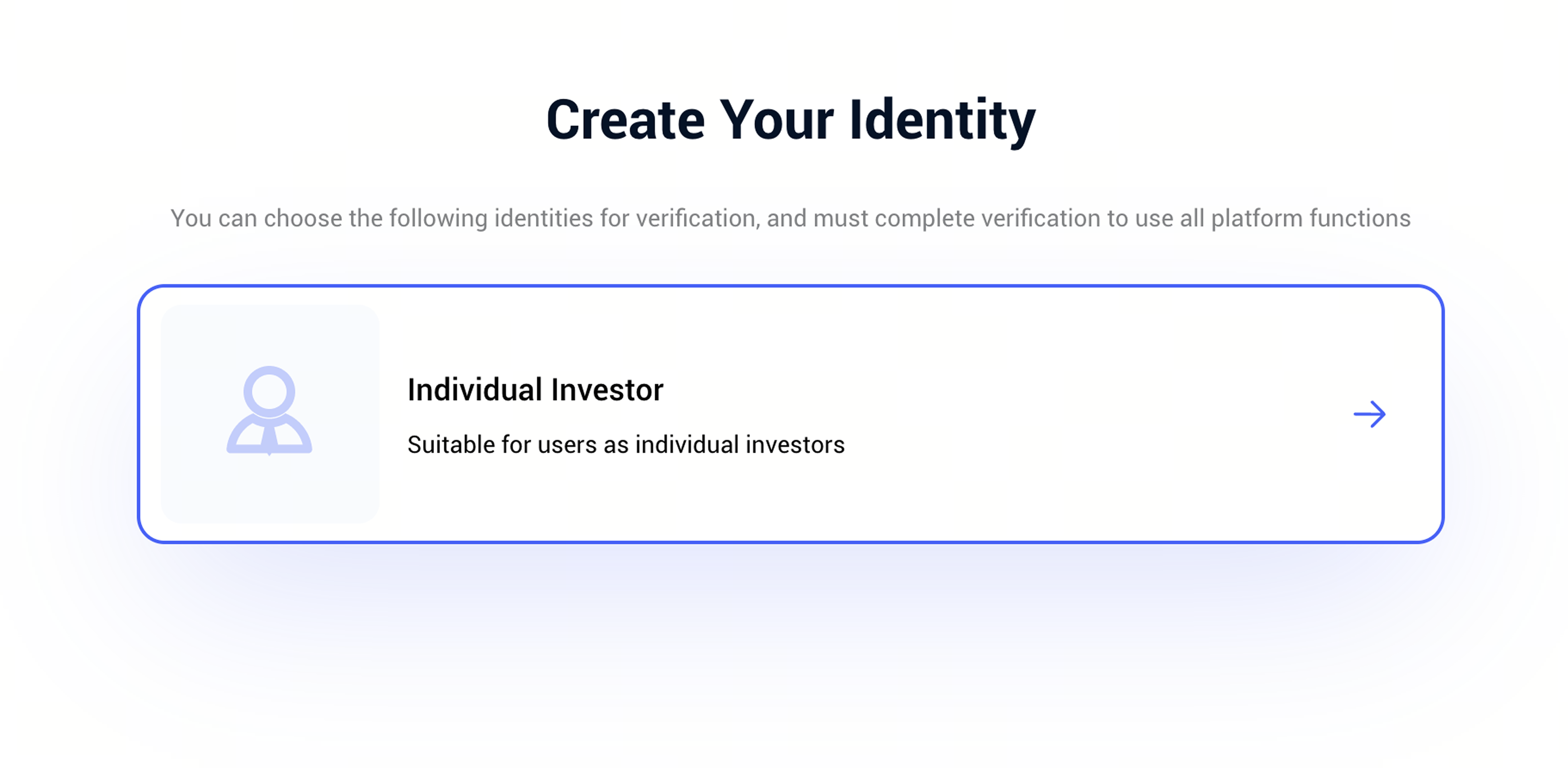
To comply with regulatory requirements and ensure transaction security, all users must complete KYC verification before investing or trading.During the KYC process, you will be required to:
• Select your country.
• Choose an acceptable identity document type (e.g. National ID or Passport).
• Enter your full legal name.
• Provide the corresponding ID or passport number.
Please ensure all information is accurate and matches your official documents. Additional information and documents may be required to complete the verification. Successful KYC verification is required to access platform investment and trading features.
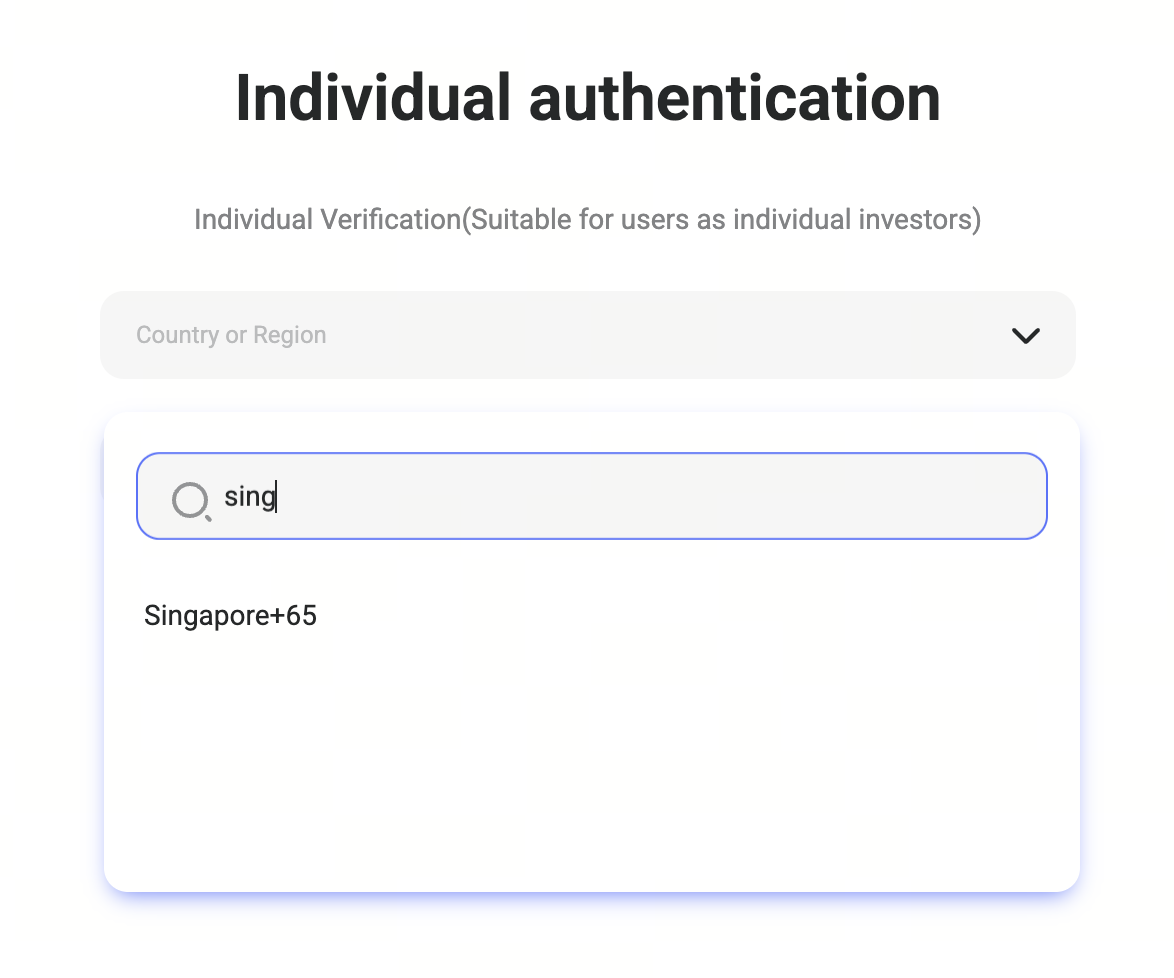
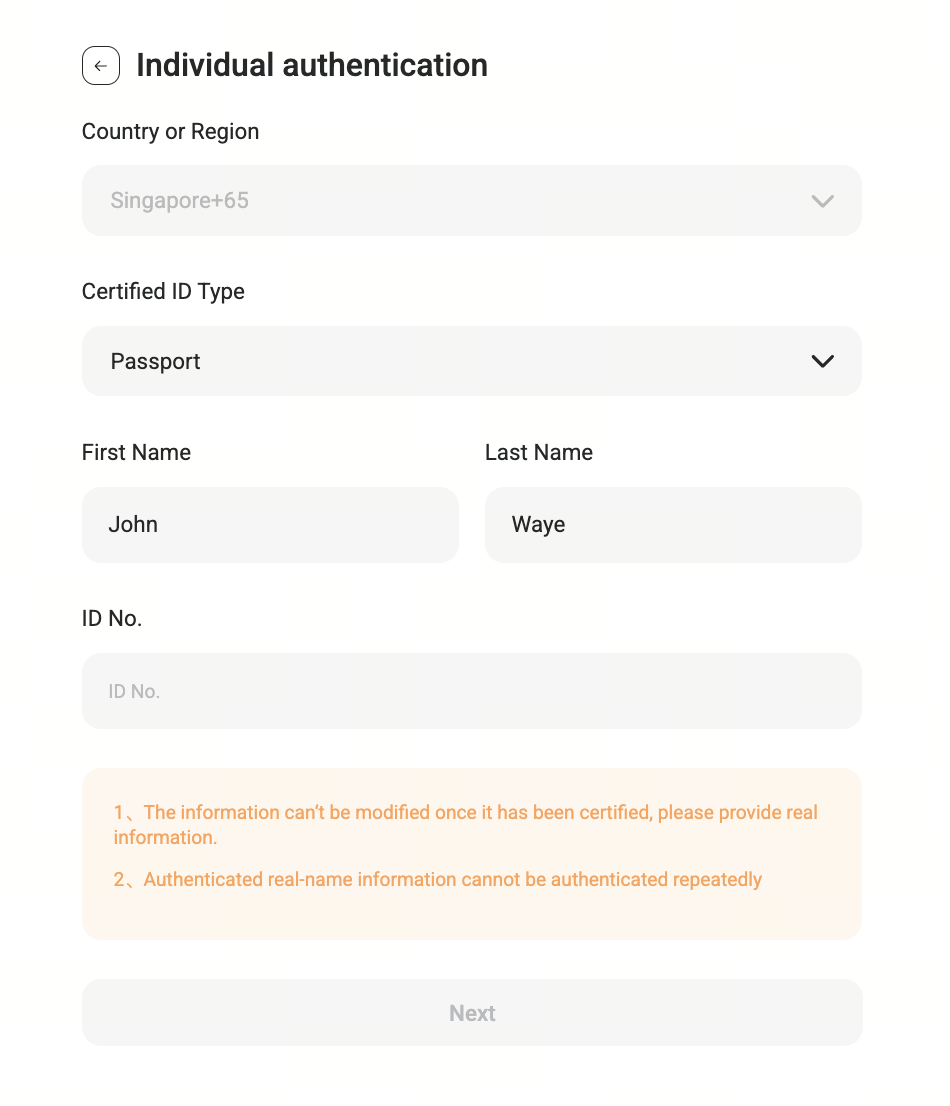
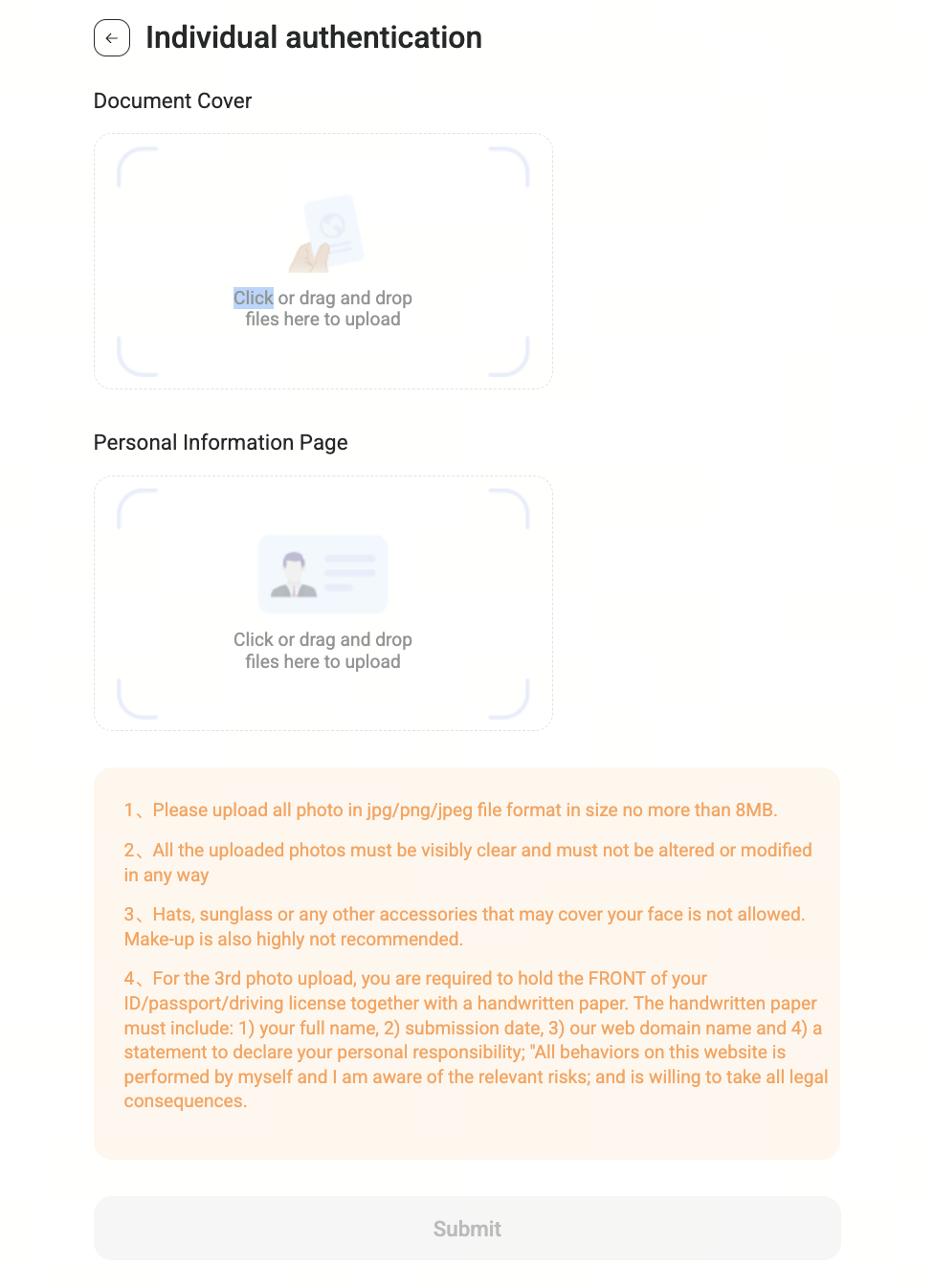
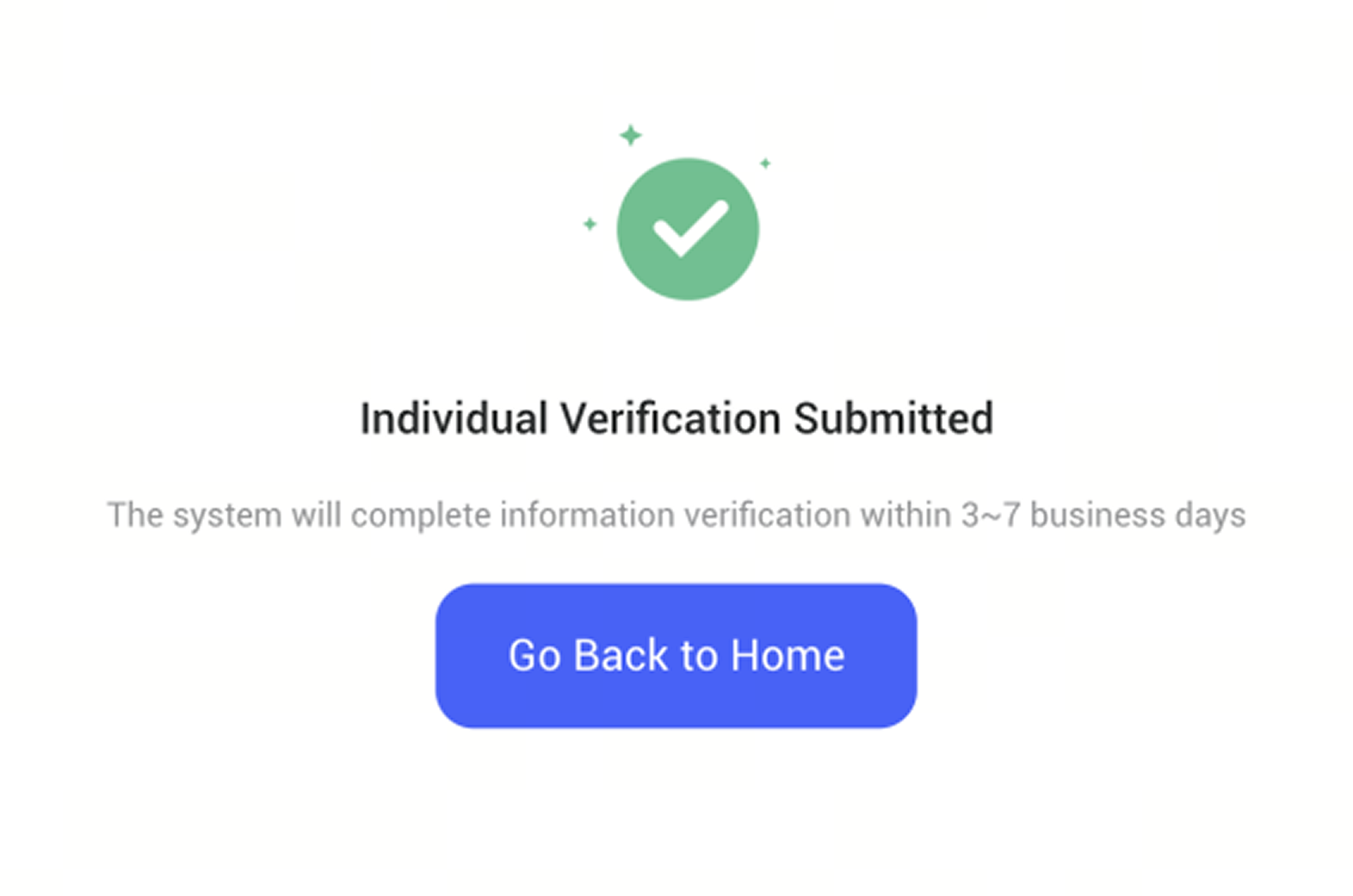
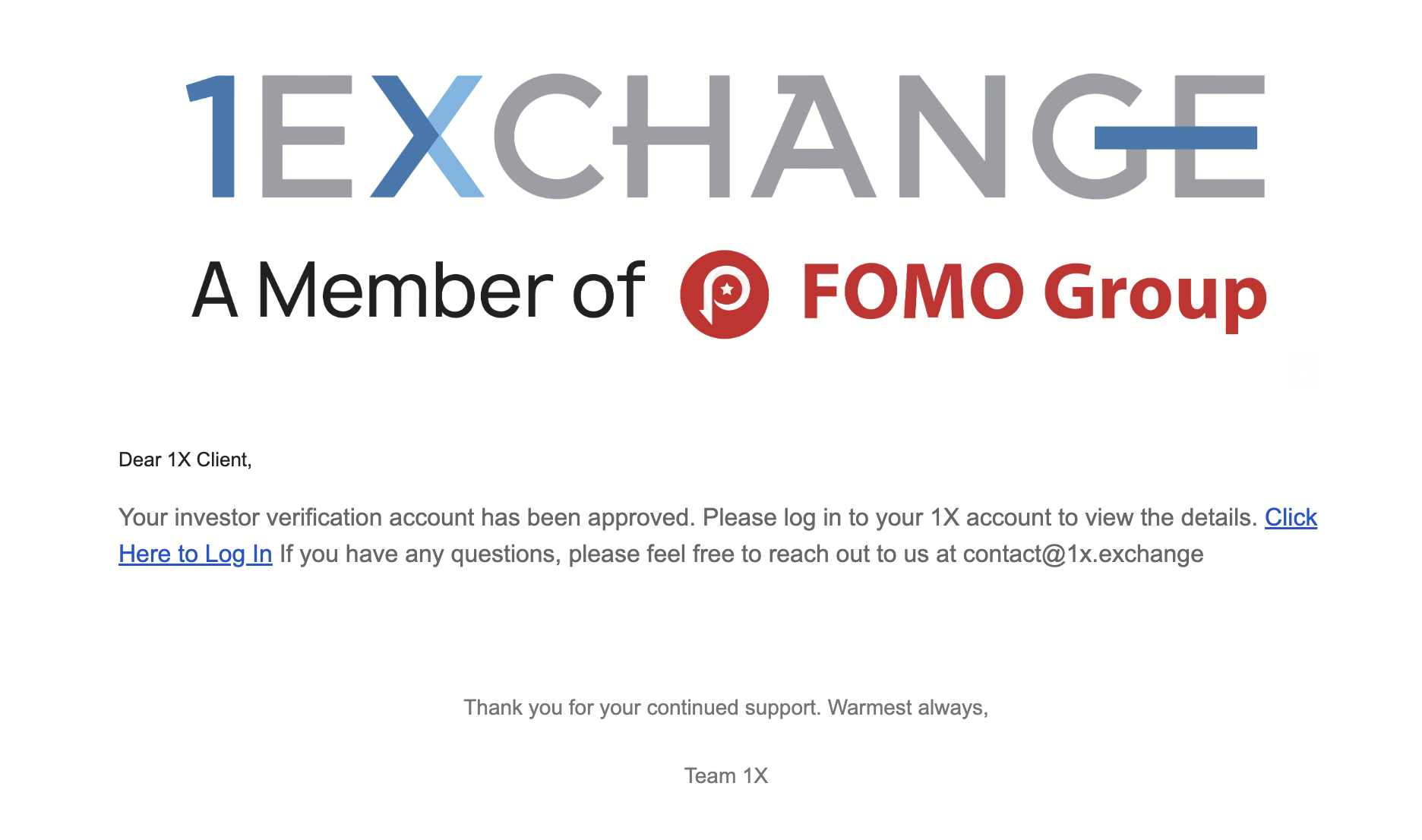
Once the KYC verification is approved, you will receive a notification email and you can access the Listing and Trading pages.
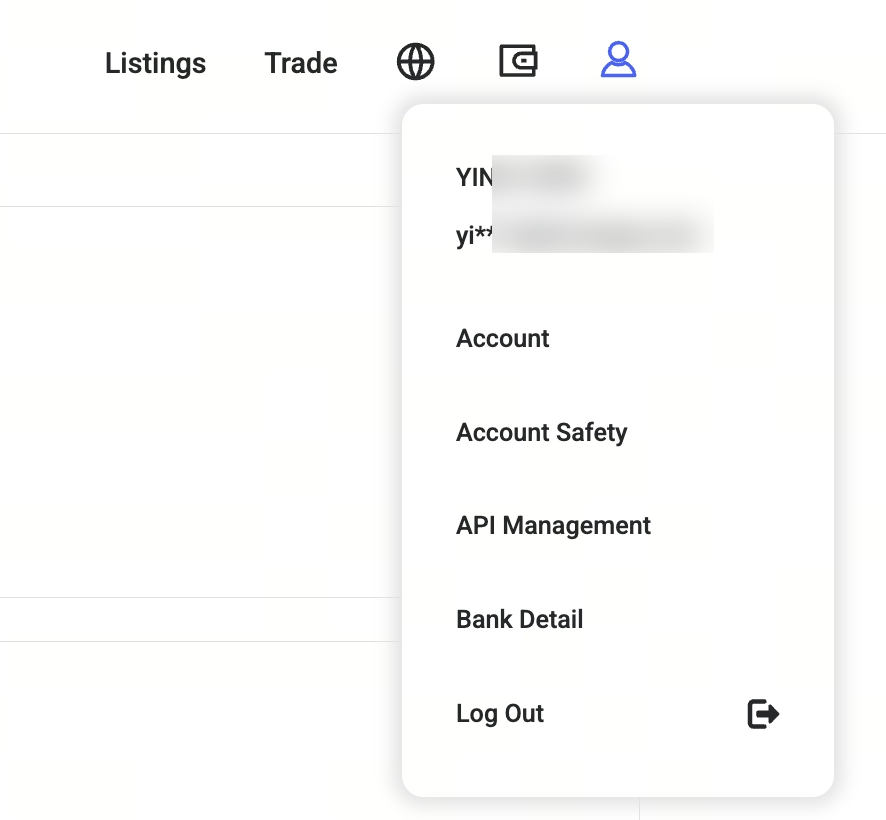
The Account section allows you to manage settings that enhance account security.
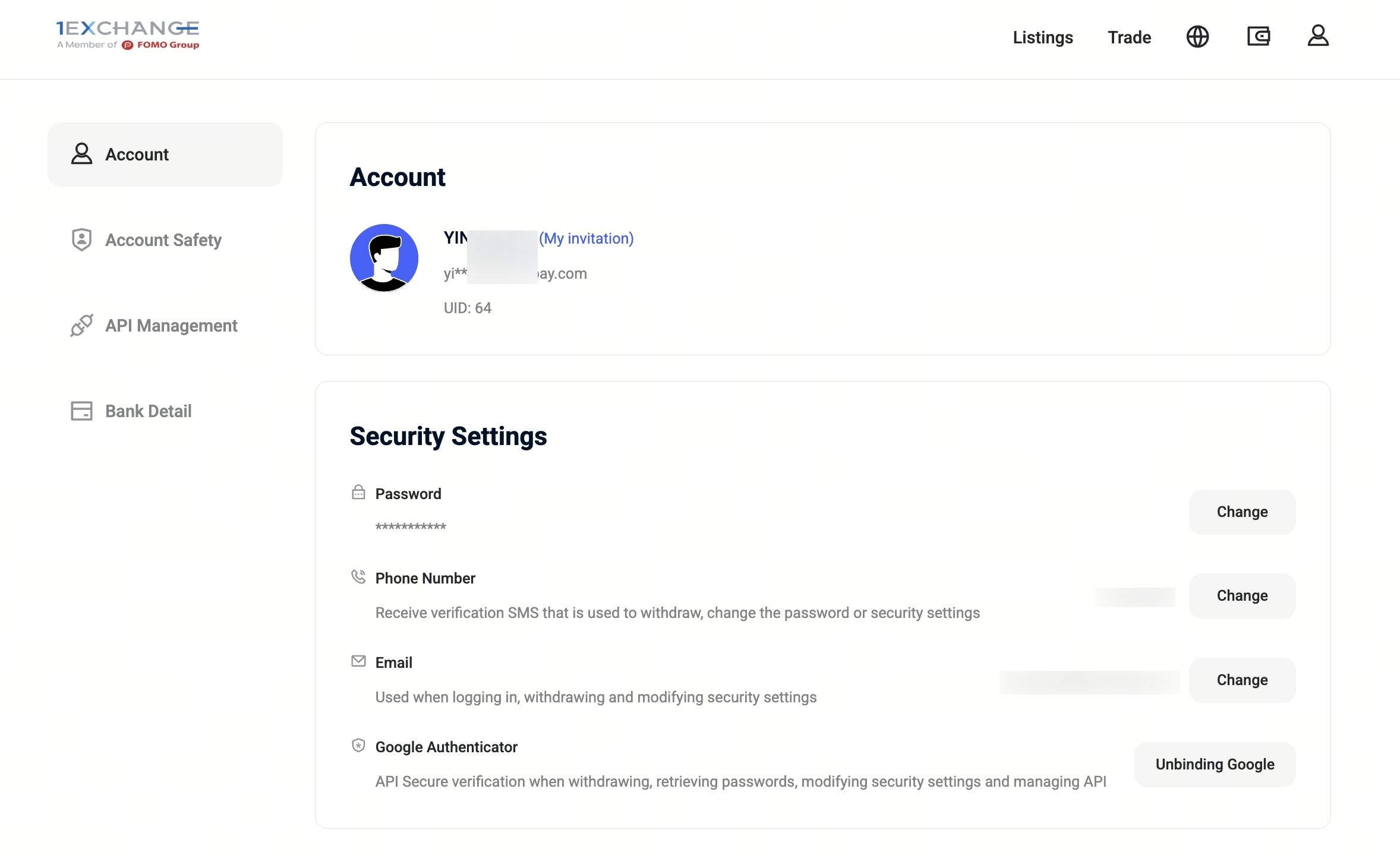
Change password

You may change your account password at any time. An email verification code will be required to confirm the password change.
Bind Google Authenticator

For enhanced security and compliance, users are required to bind Google Authenticator (2FA) before conducting any trades.
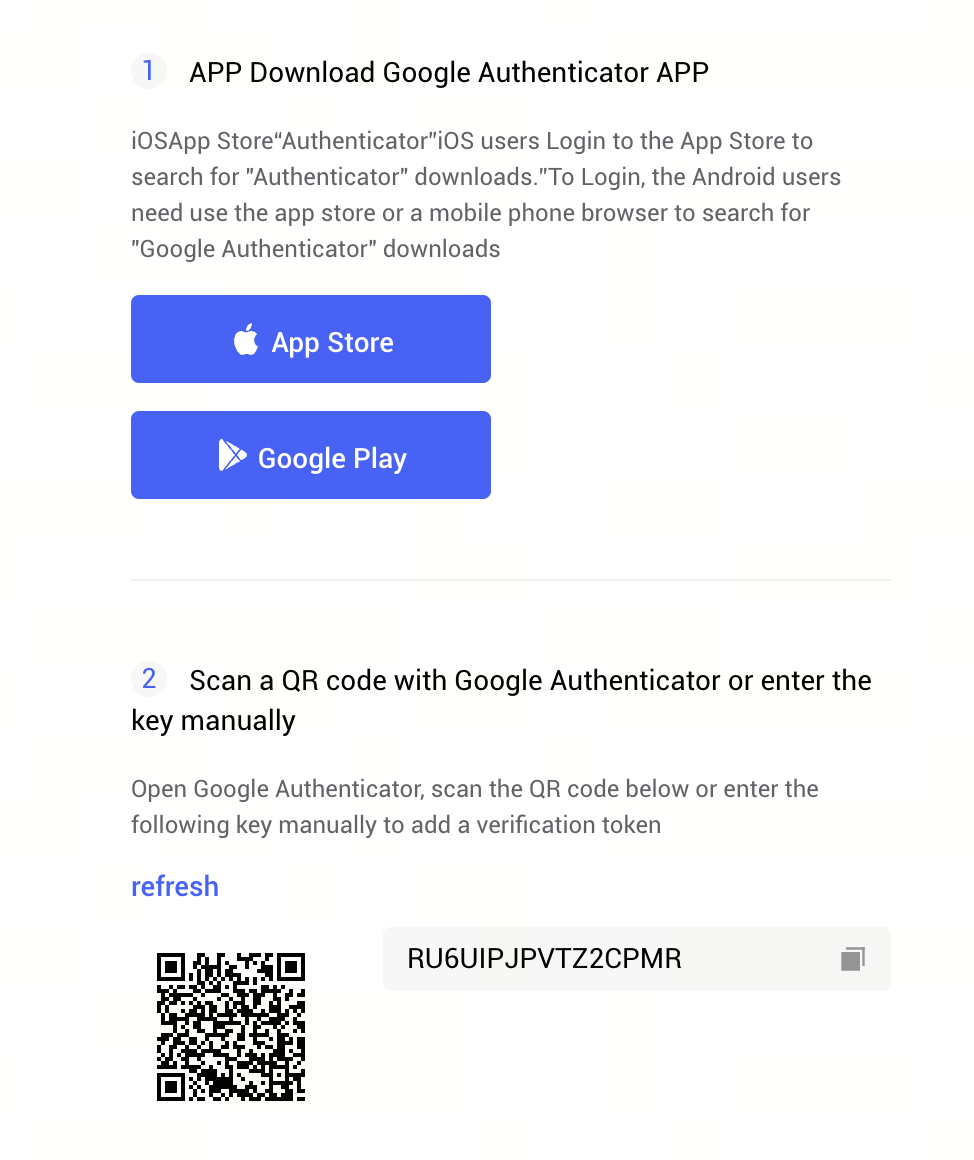
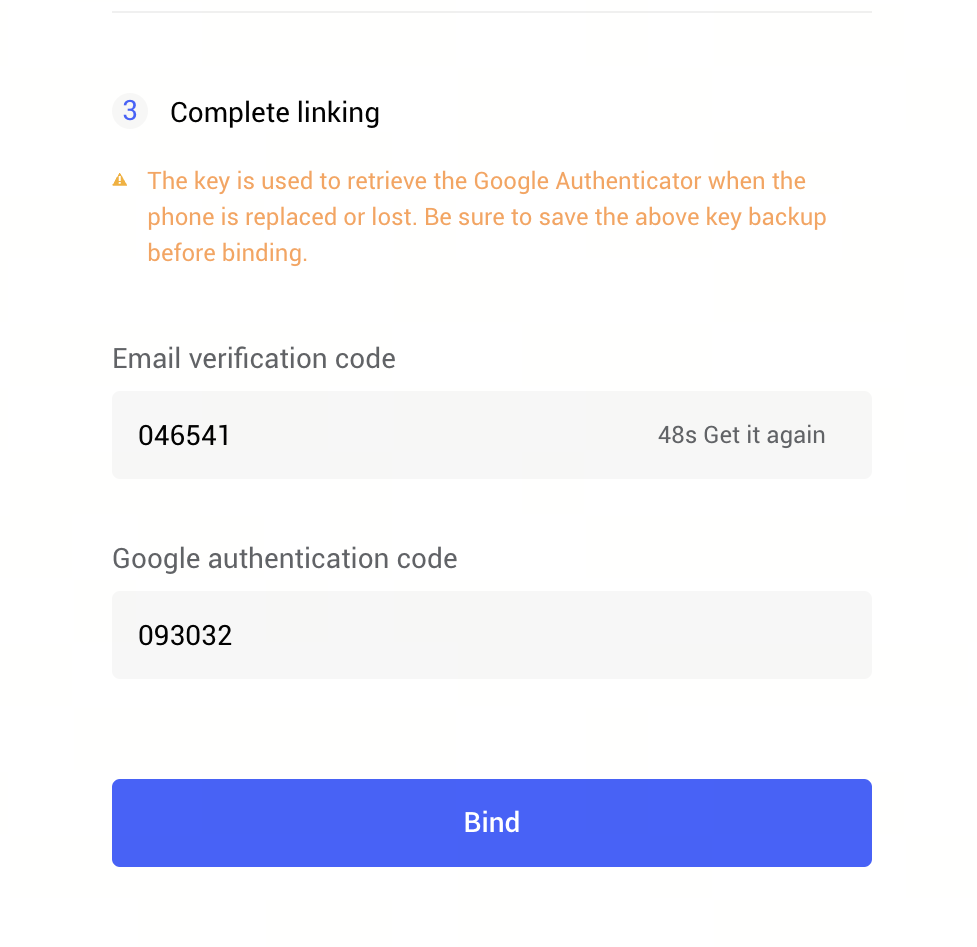
Steps to bind Google Authenticator:
1. Download and install the Google Authenticator app on your mobile device.
2. Open the app:
○ Android: Select Add New Account.
○ iOS: Tap the “+” icon.
3. Scan the QR code displayed on the platform, or manually enter the provided key.
4. Back up the key securely (preferably offline).
5. Enter the Google Authenticator code and the email verification code to complete the binding process.
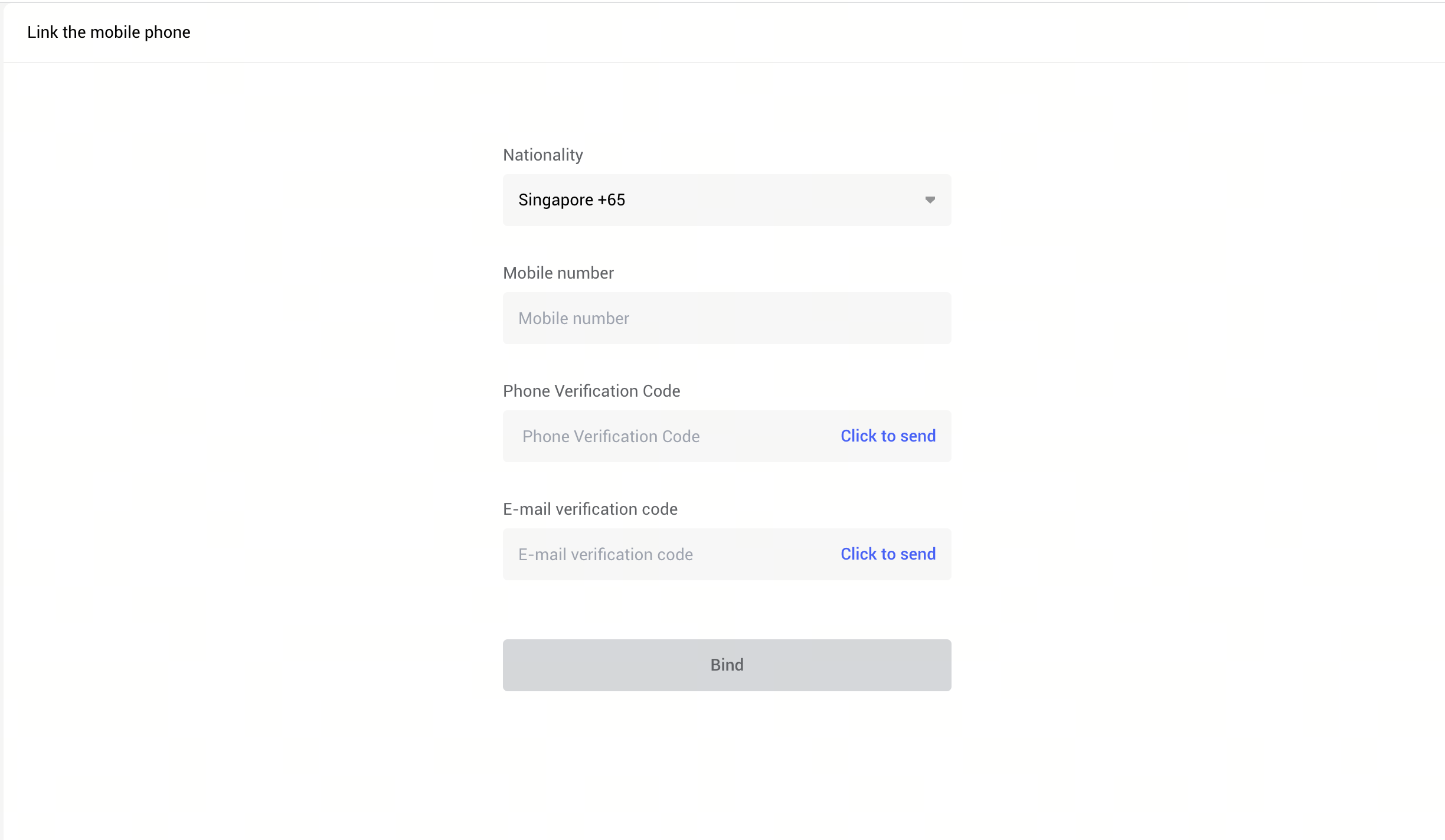
Bind Mobile Phone Number

You may bind a mobile phone number to your account to receive verification codes for security-sensitive actions.
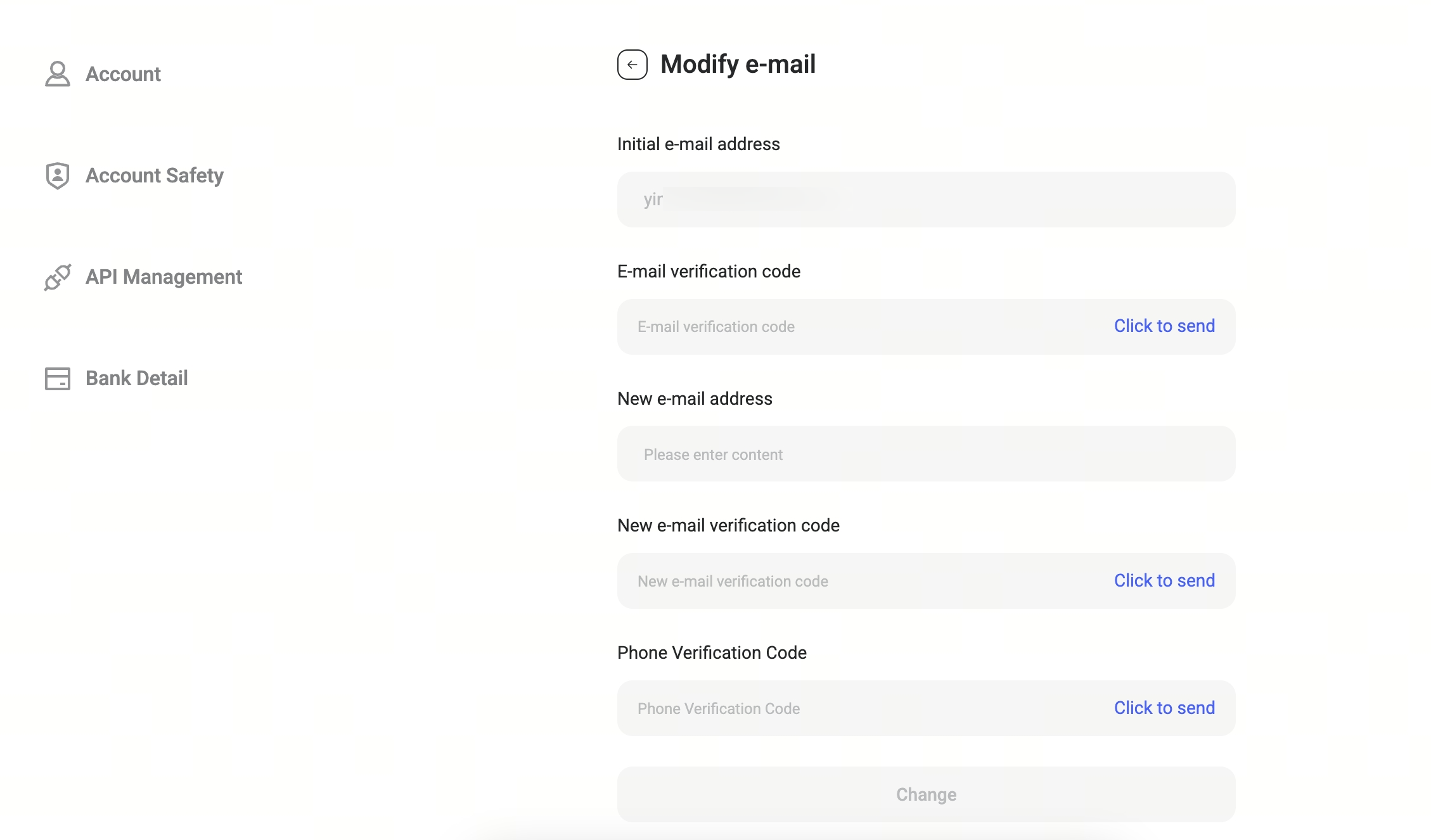
Change Email Address

You may update the email address used for login and verification purposes within the Account section.
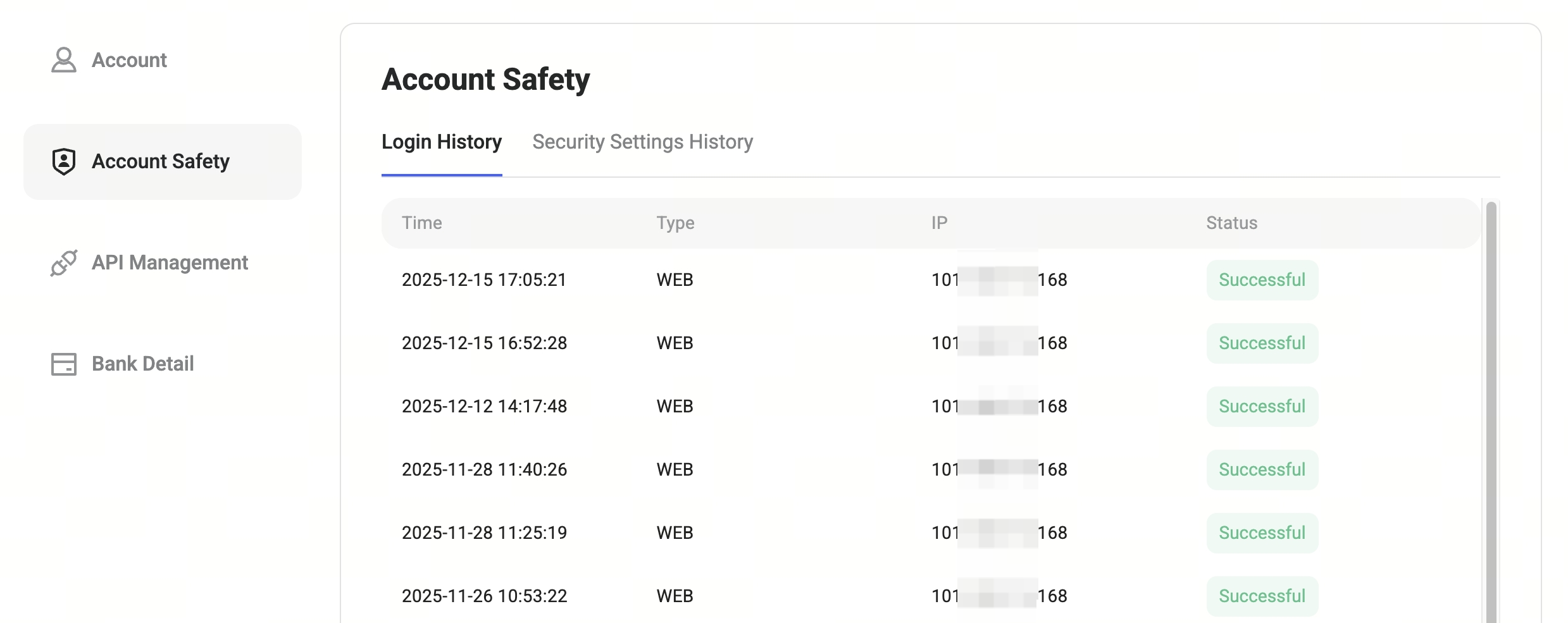
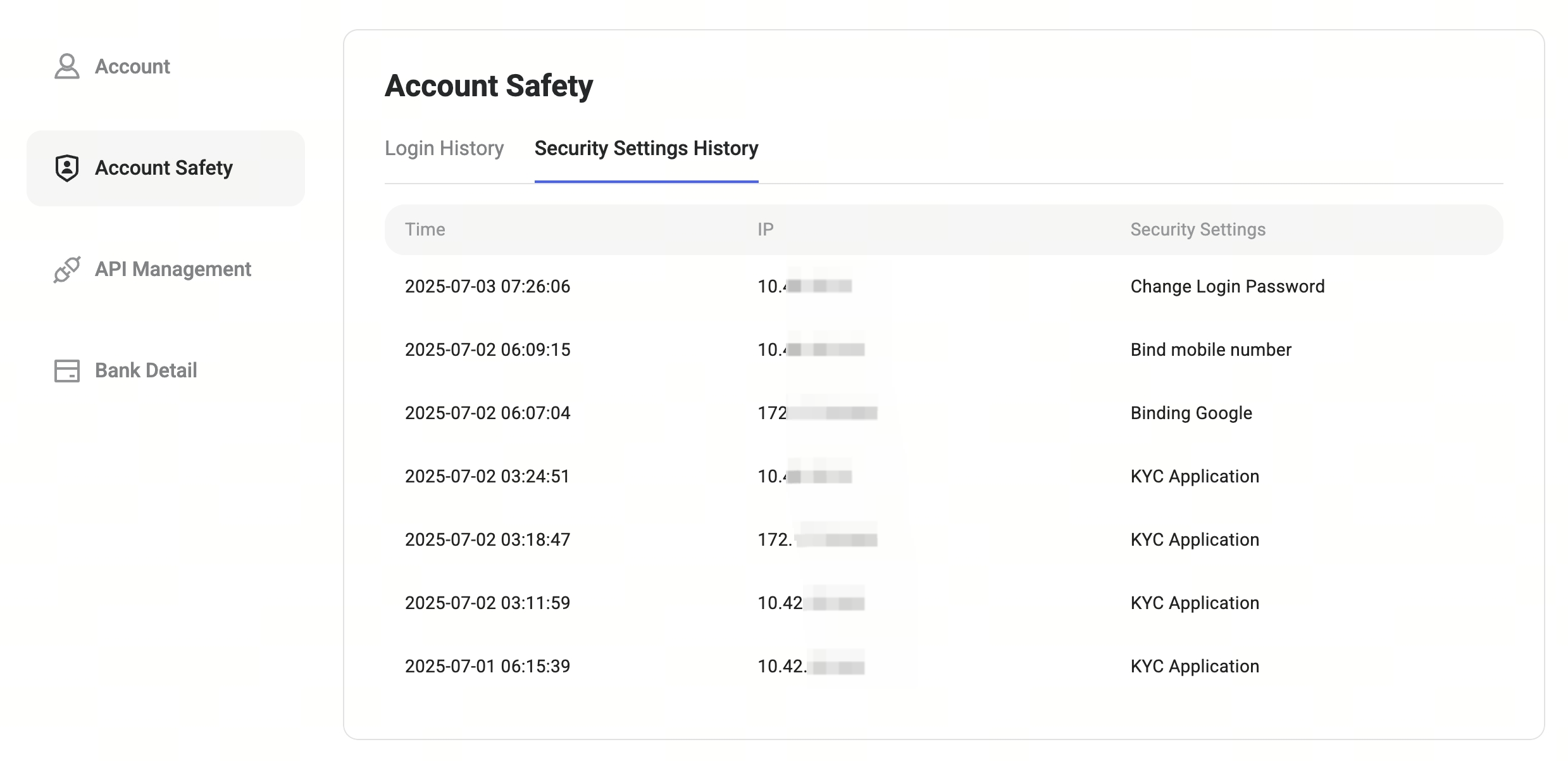
Under Account Safety, you can review:
• Login History
• Security Settings History
These records help you monitor account activity and detect any unauthorized access.
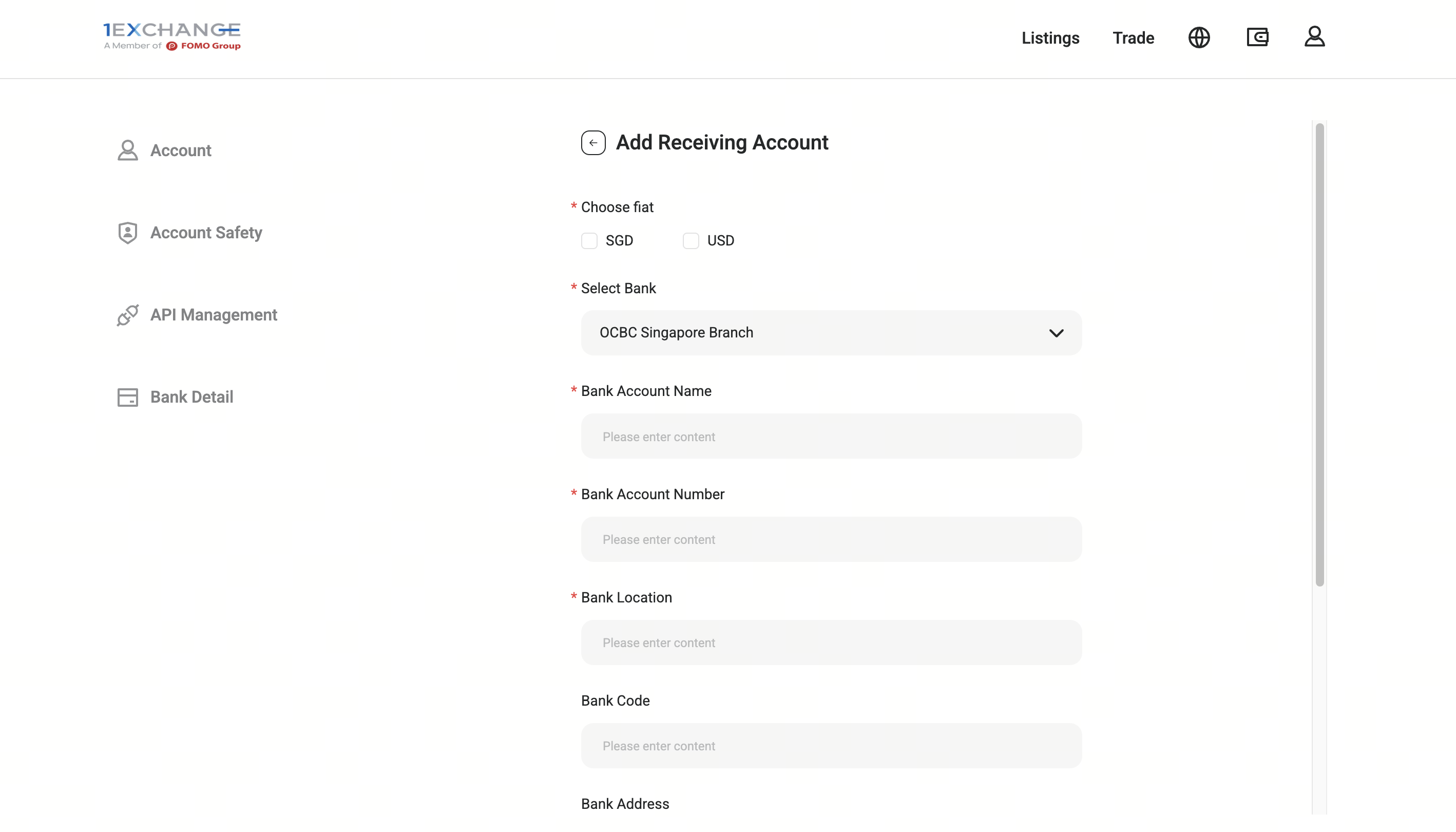
A verified bank account is required before fiat withdrawals can be processed.
• You may add, activate, or delete bank accounts under Bank Details.
• The first bank account added will be activated by default.
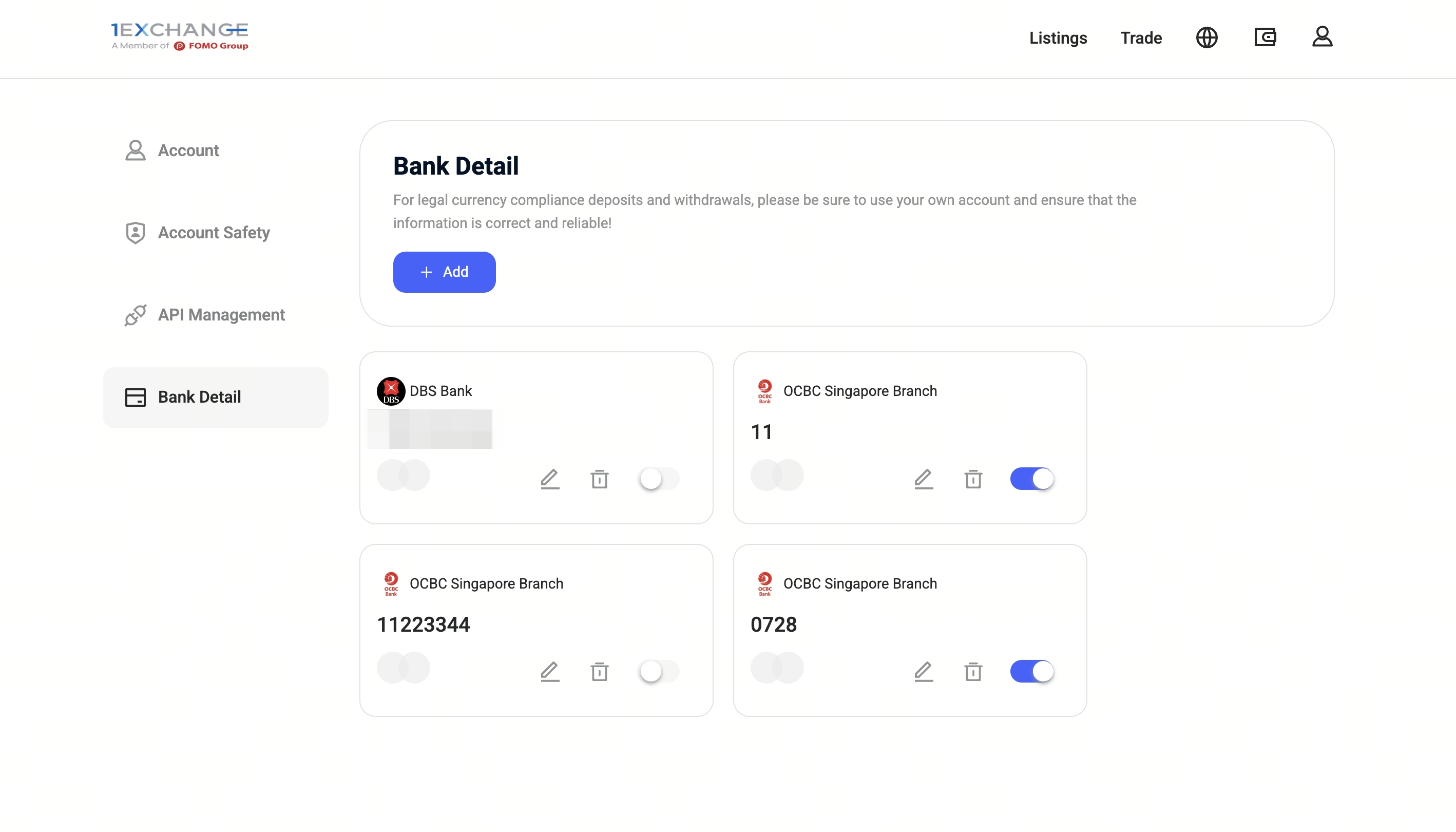
Please ensure that all bank information provided is accurate and belongs to the account holder.
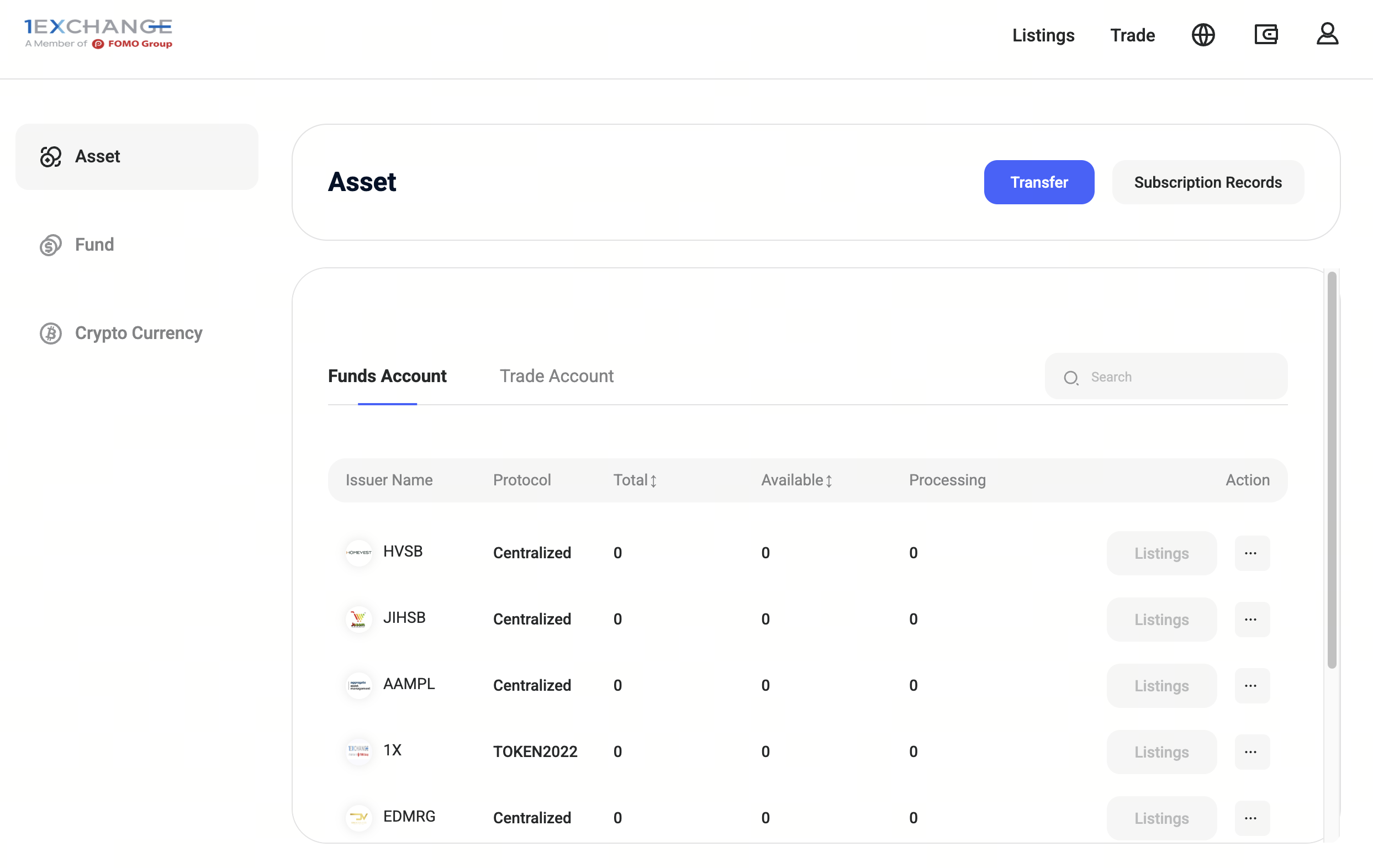
All assets are grouped into two accounts Funds Account and Trade Account
Funds Account Used for Listings (primary market), and for fiat/crypto deposits and withdrawals.
Trade Account Used for secondary market trading (Trading).Transfers between the Funds Account and Trade Account are required when moving assets between the primary and secondary markets.
Funds Account Displays holdings related to Listings (Primary Market).
Trade Account Displays holdings related to Trading (Secondary Market).
Only assets shown under Available Balance in the Trade Account can be used for trading.
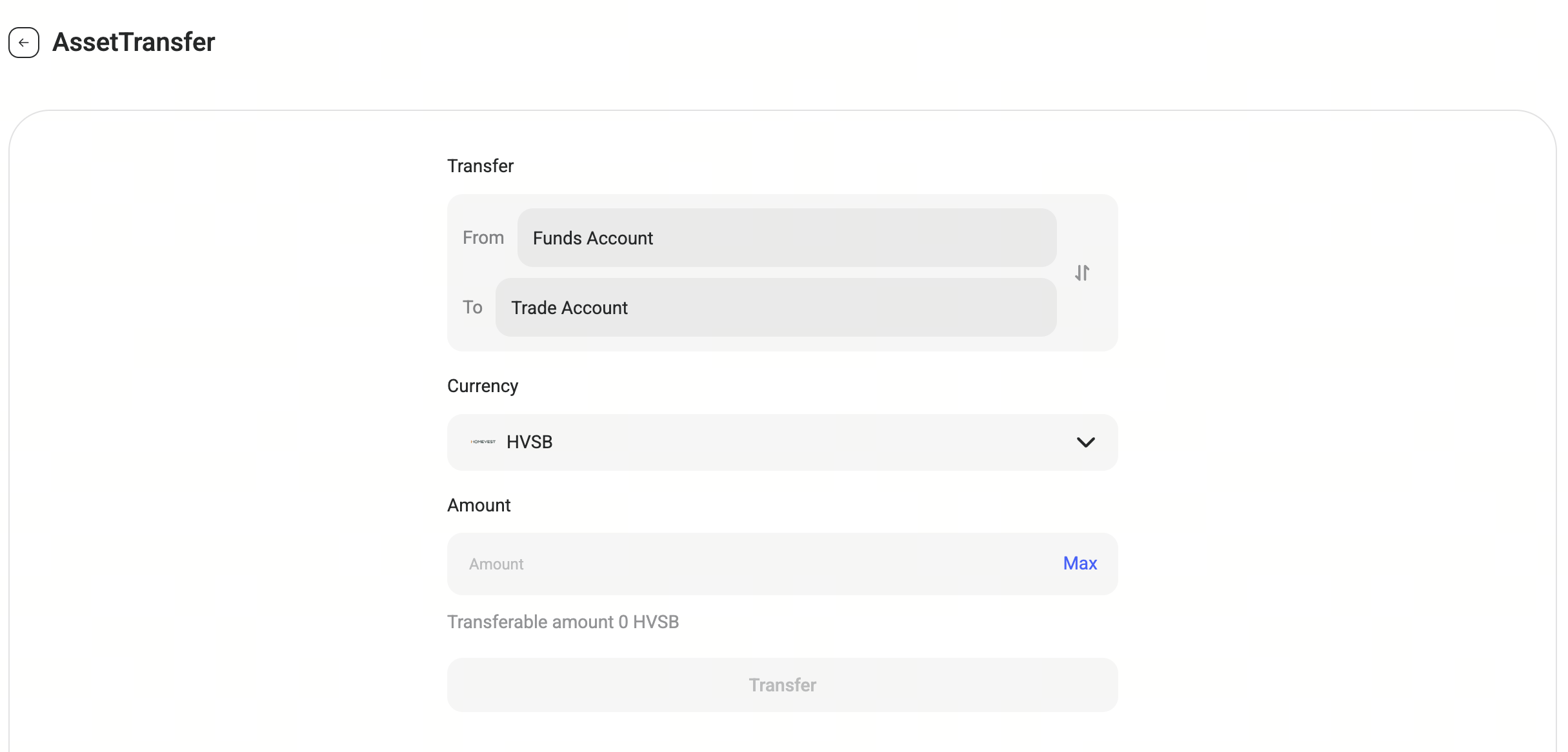
Transfer
To trade assets acquired from Listings, you must transfer them from the Funds Account to the Trade Account. Once successfully transferred, the assets will appear as Available Balance and can be used for buy or sell orders in the Trading market.
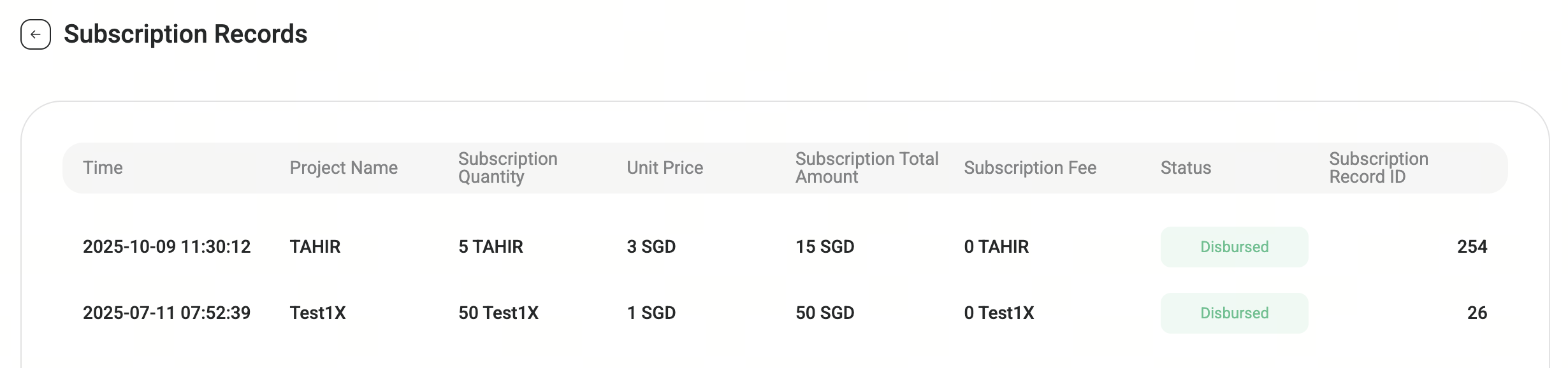
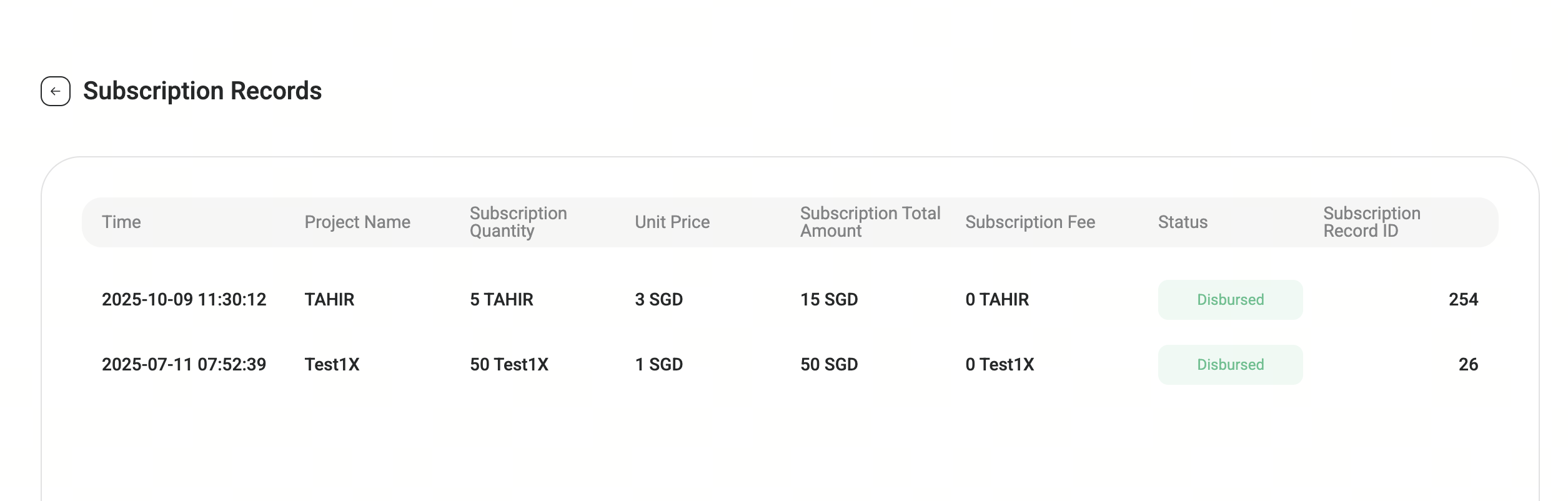
Subscription Records
Under Subscription Records, you can view all historical subscription activities related to primary market investments.
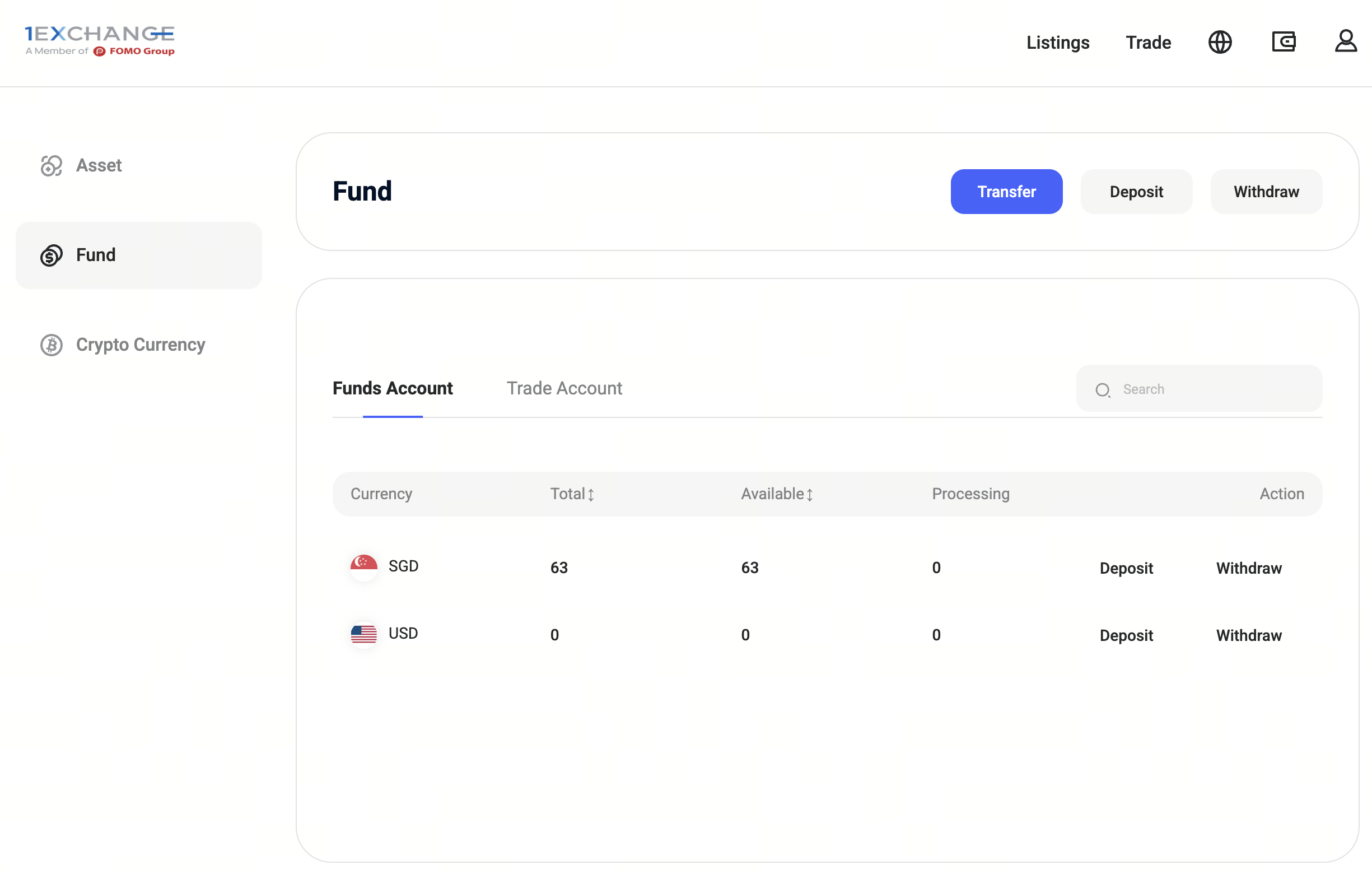
All fiat balances are displayed by currency type.
Funds Account Fiat available for Listings (Primary Market).
Spot Account Fiat available for Trading (Secondary Market).
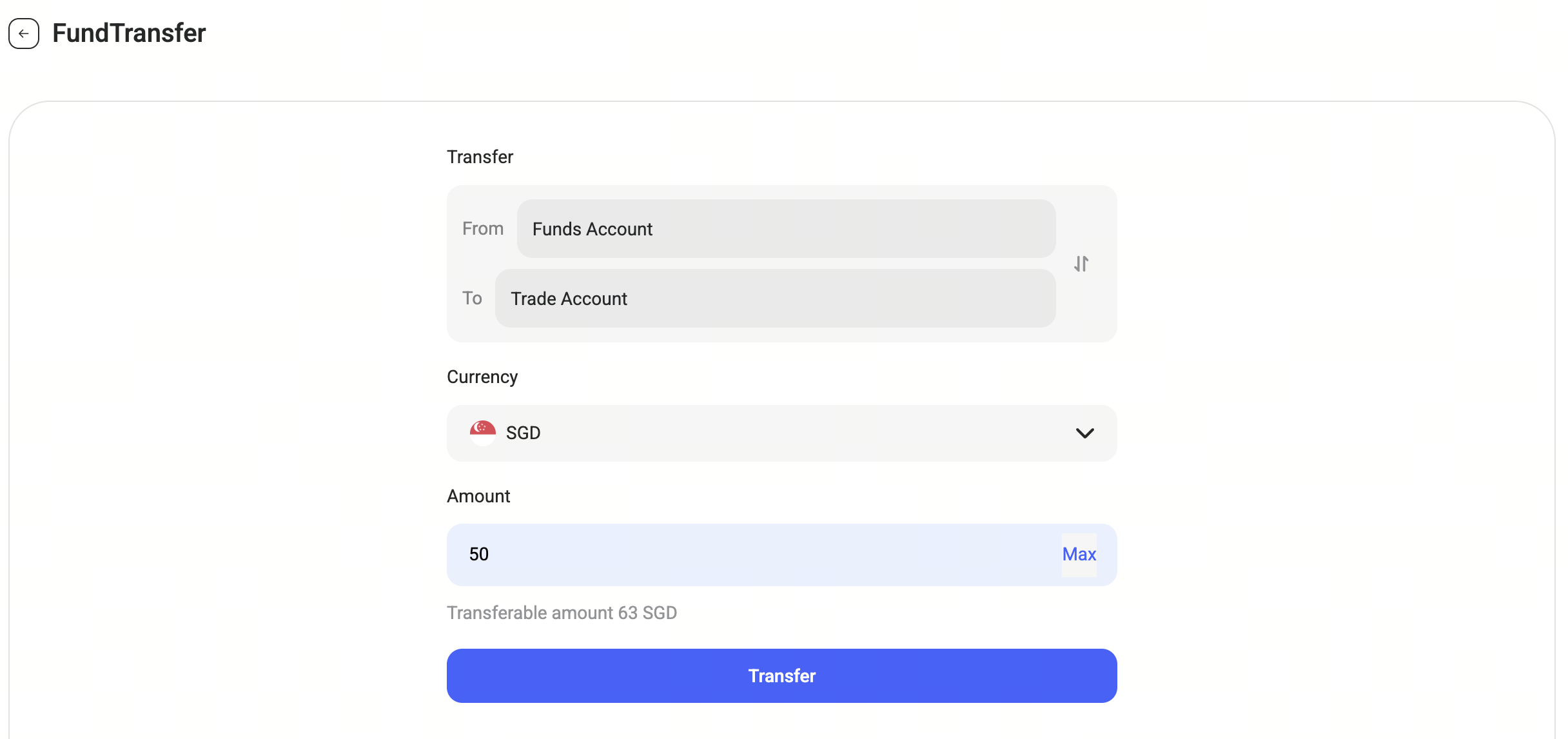
Transfer
You may transfer fiat funds between the Funds Account and Trade Account, depending on your investment or trading needs.
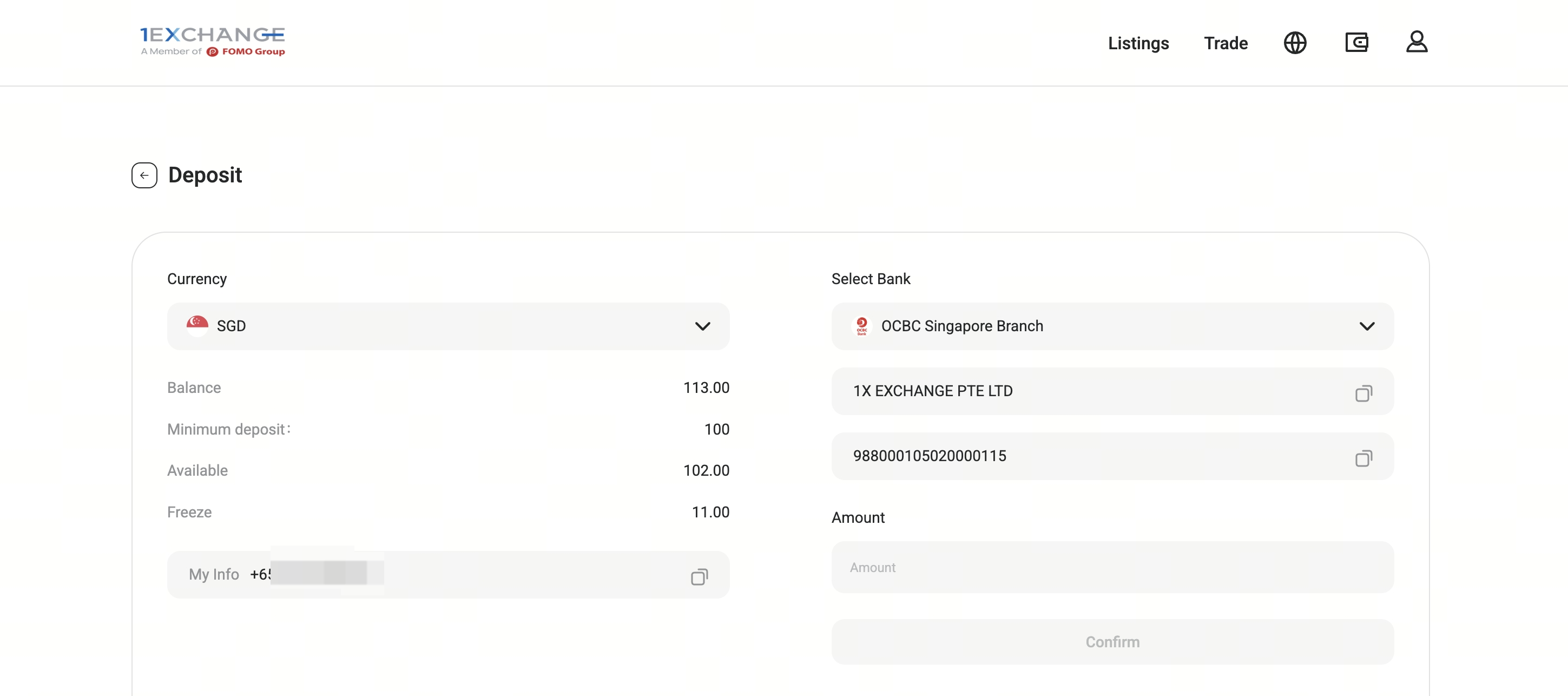
Deposit
To deposit fiat funds:
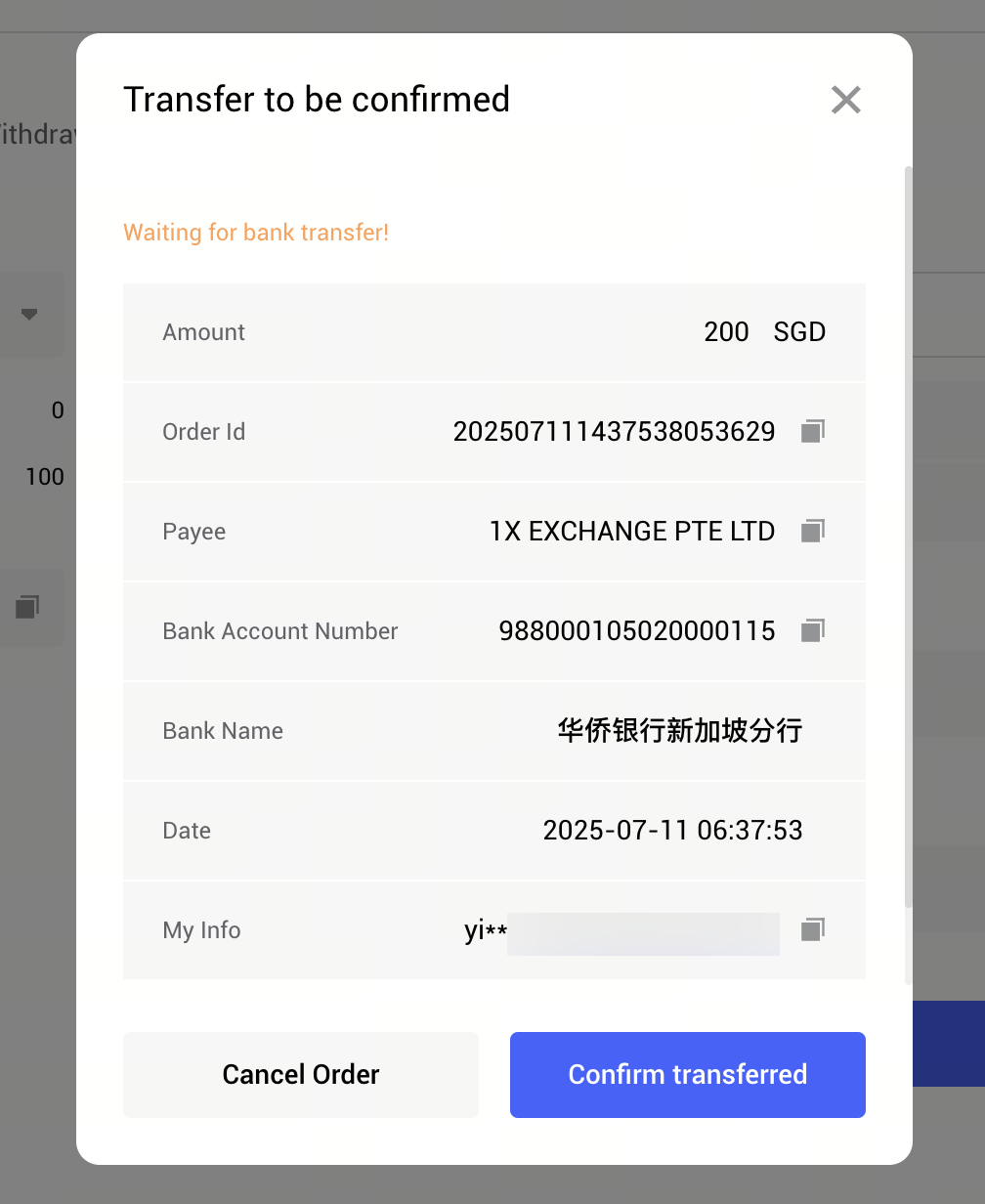
1. Follow the on-screen instructions to obtain deposit details.
2. Complete the bank transfer offline via your bank.
3. Click Confirm Transferred after completing the transfer.
Deposit records will be displayed in the Recent section. Deposited funds will appear in the Funds Account.
Withdraw
Once your bank account has been added under Bank Details, you may request fiat withdrawals. Withdrawals are processed only from the Funds Account
• Follow the withdrawal instructions to transfer funds from the eWallet to your bank account.
• Withdrawal fee applies.
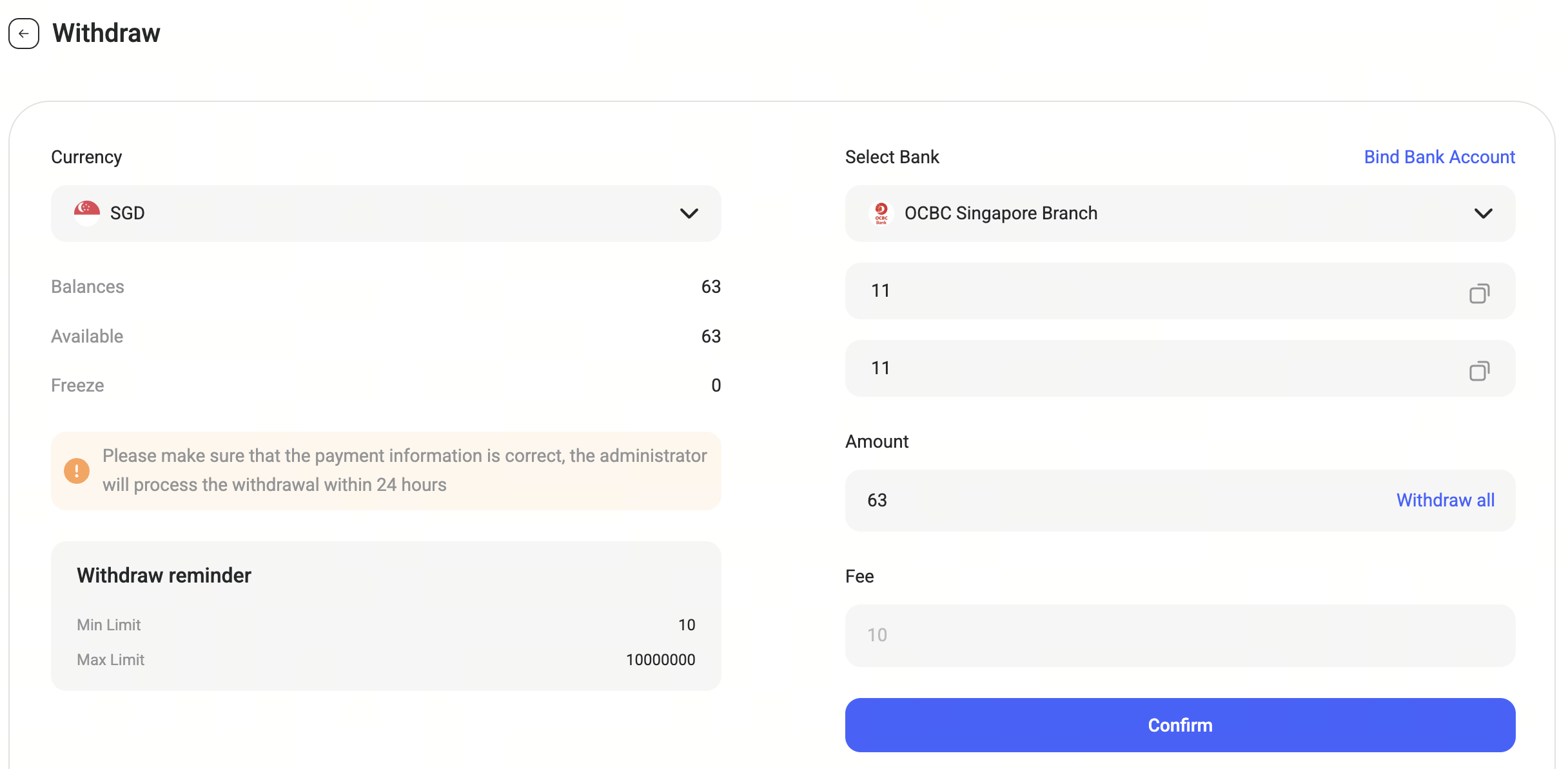
Transaction histories will be displayed under the Recent tab.

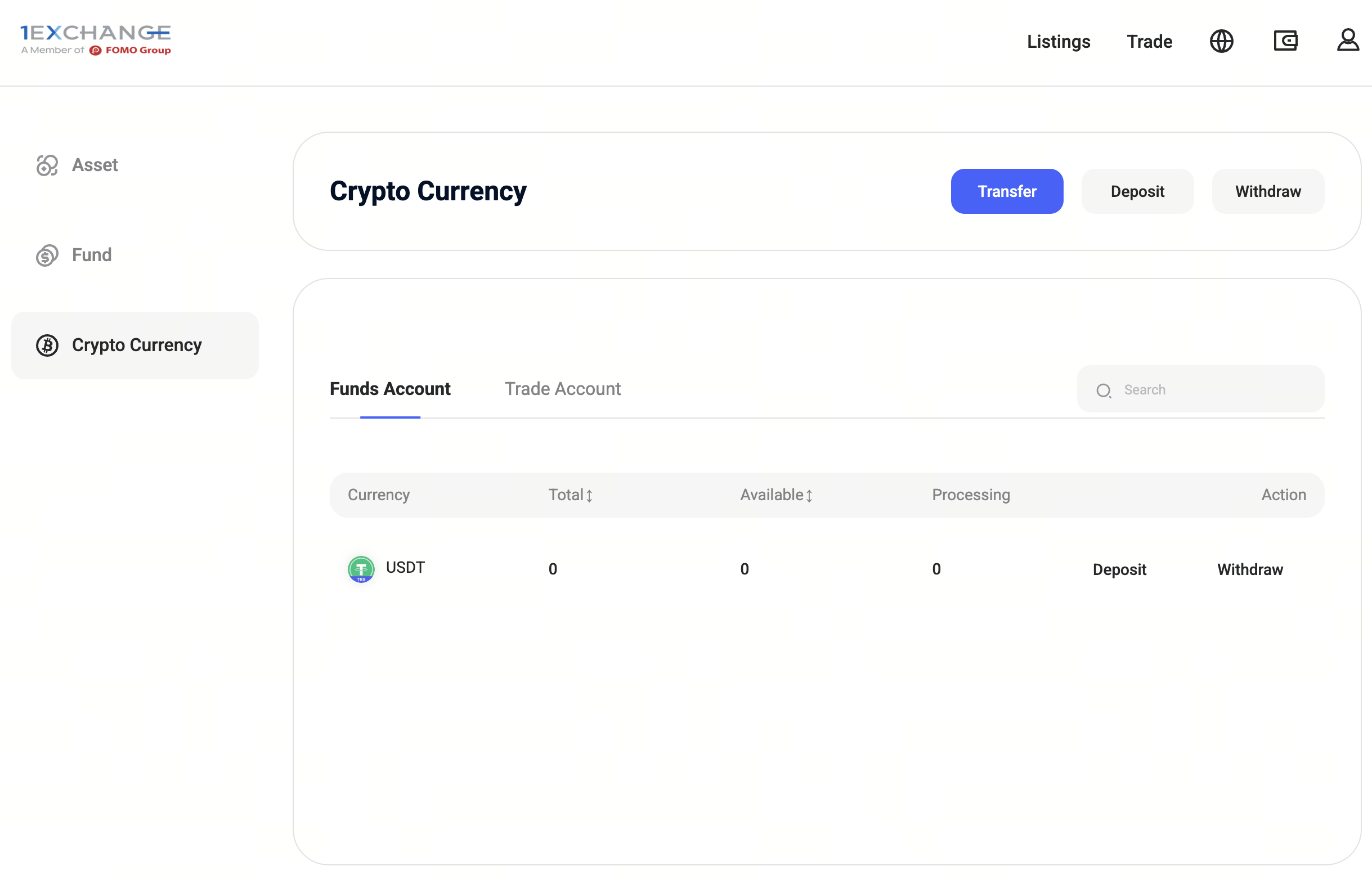
All supported digital assets are displayed by currency.
• Funds Account Digital assets available for Listings (Primary Market).
• Trade Account Digital assets available for Trading (Secondary Market).
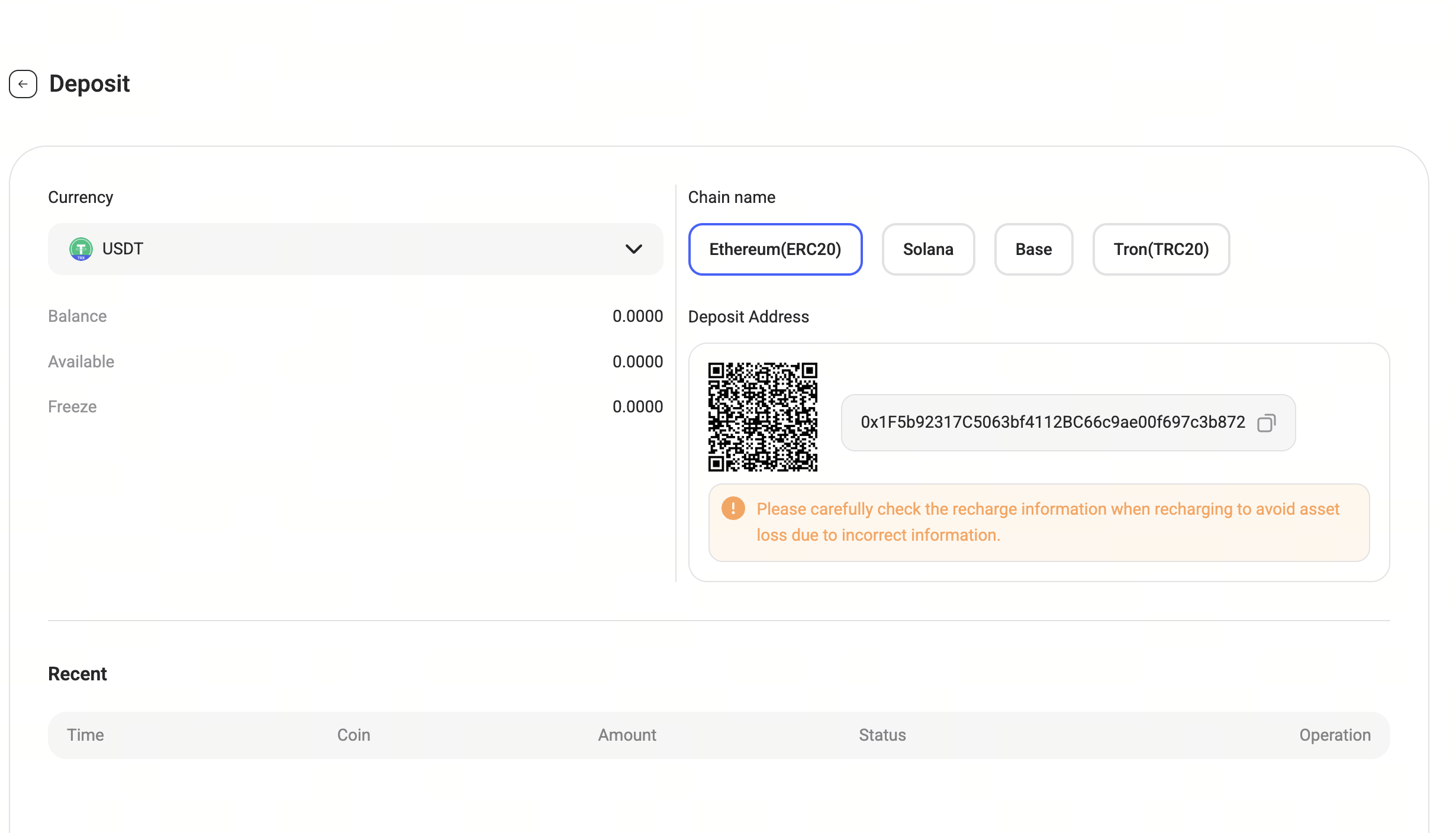
Deposit
Select the digital currency and network you wish to deposit, and the wallet address will be displayed.
Copy or scan the address and initiate the transfer from your external wallet or exchange.
Deposited amount will appear in the Funds Account.
Withdraw
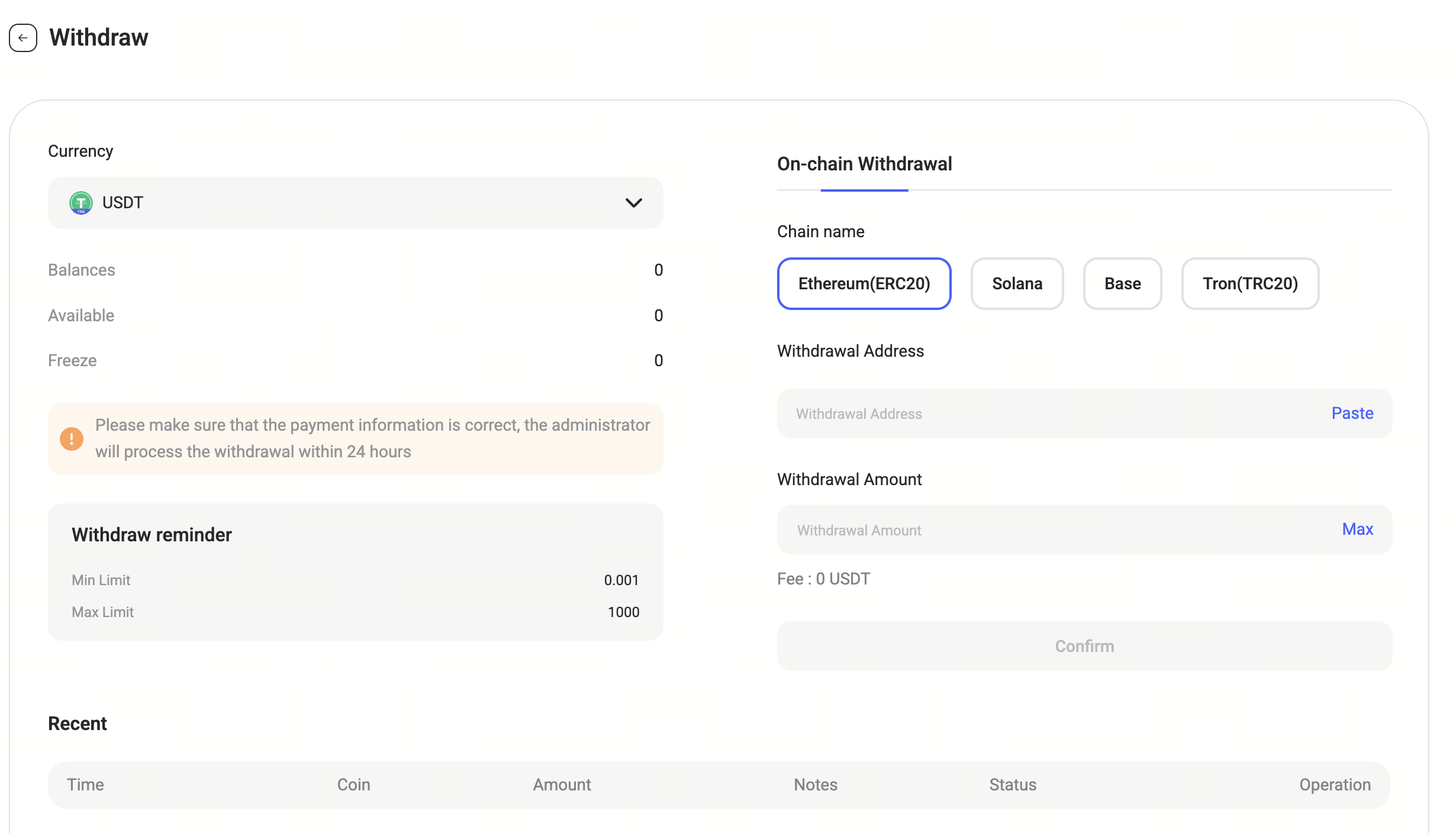
Withdrawals are available only from the Funds Account
Select the asset and network, and enter the destination wallet address. Submit the withdrawal request.
Withdrawal fee applies.
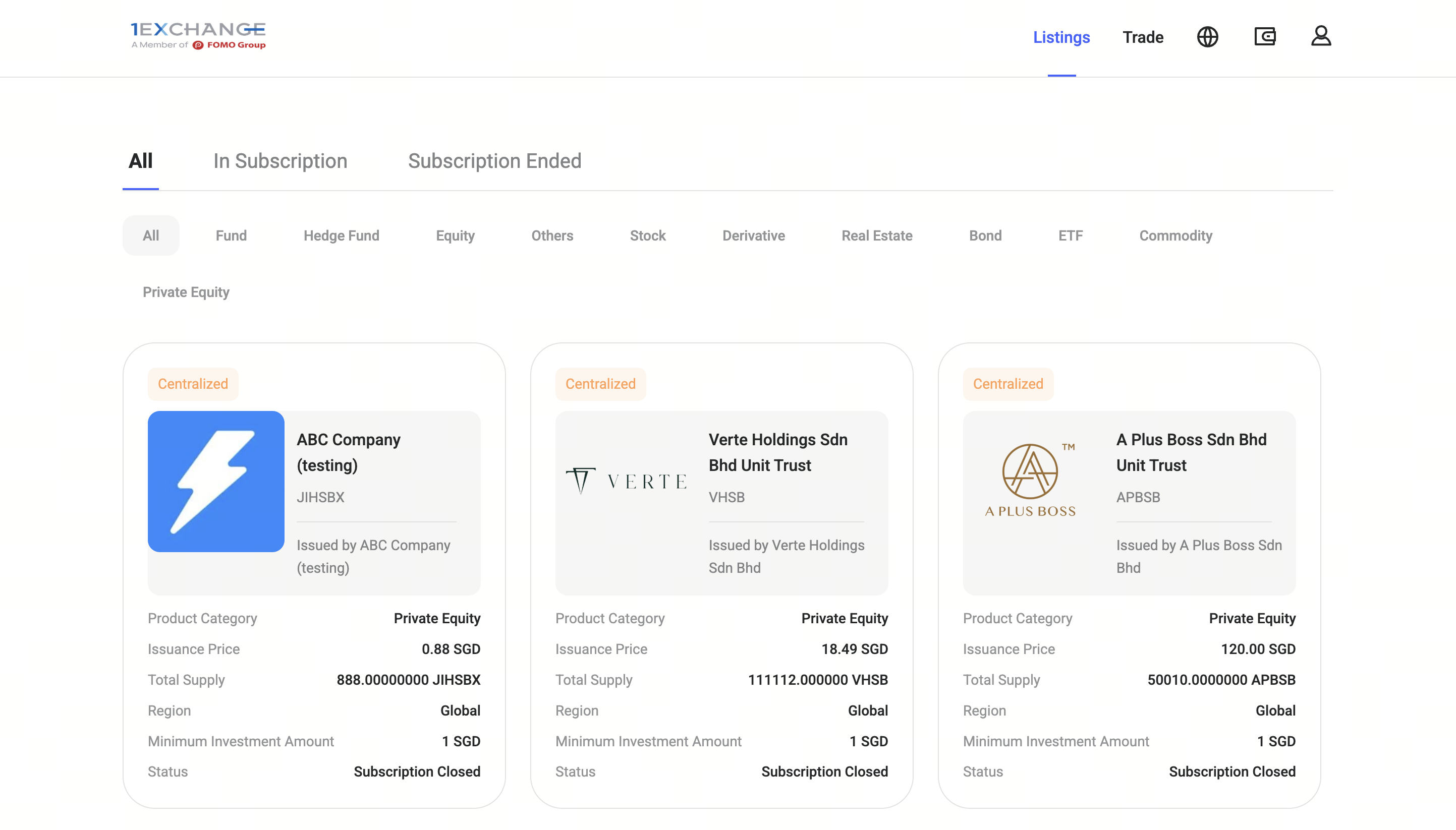
All available primary market offerings are displayed under Listings. Click on a listing to view detailed project information.
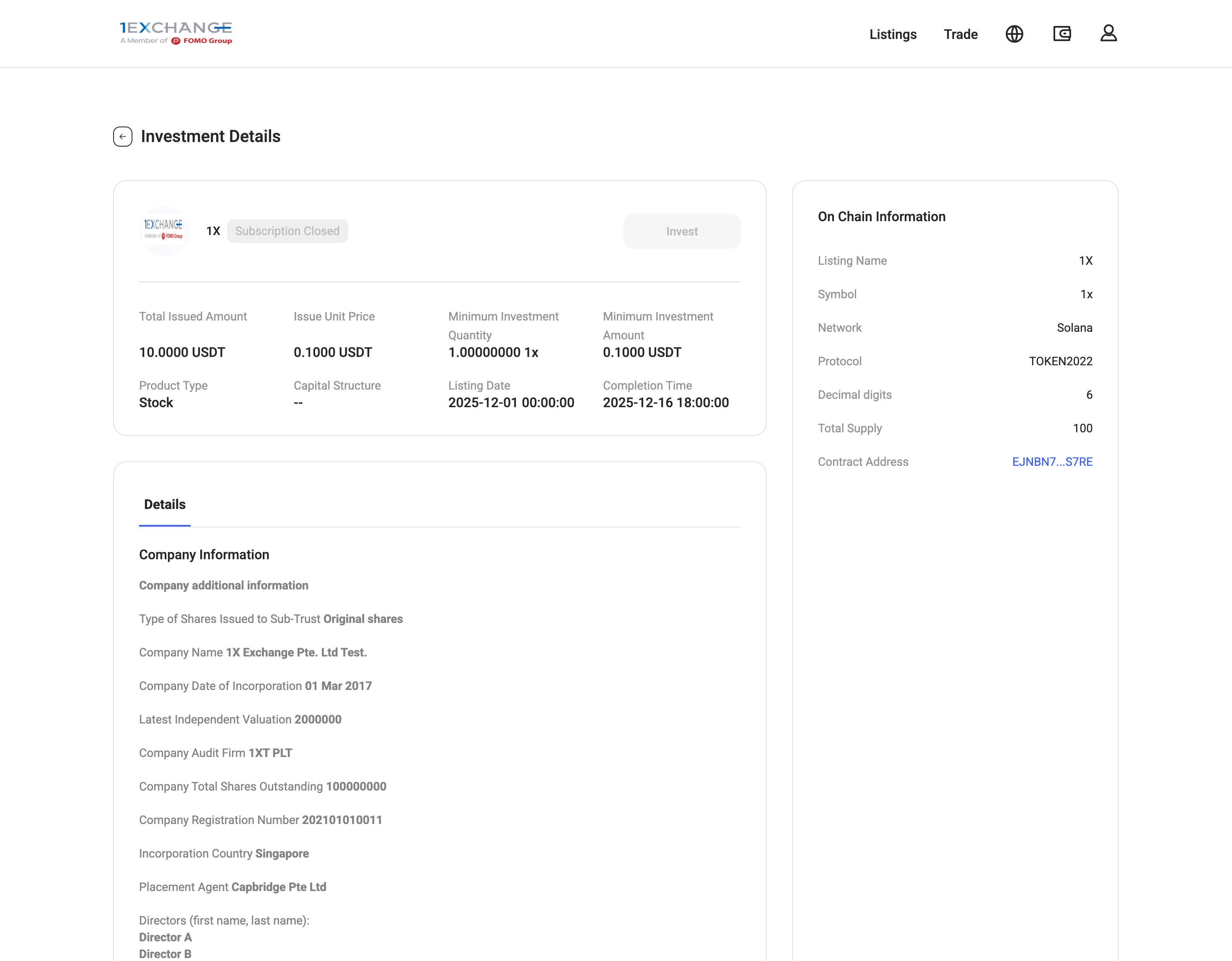
Before investing, please carefully review:
• Listing details
• Investment risks
• Minimum investment amount/quantity
• Unit price
• Related documents
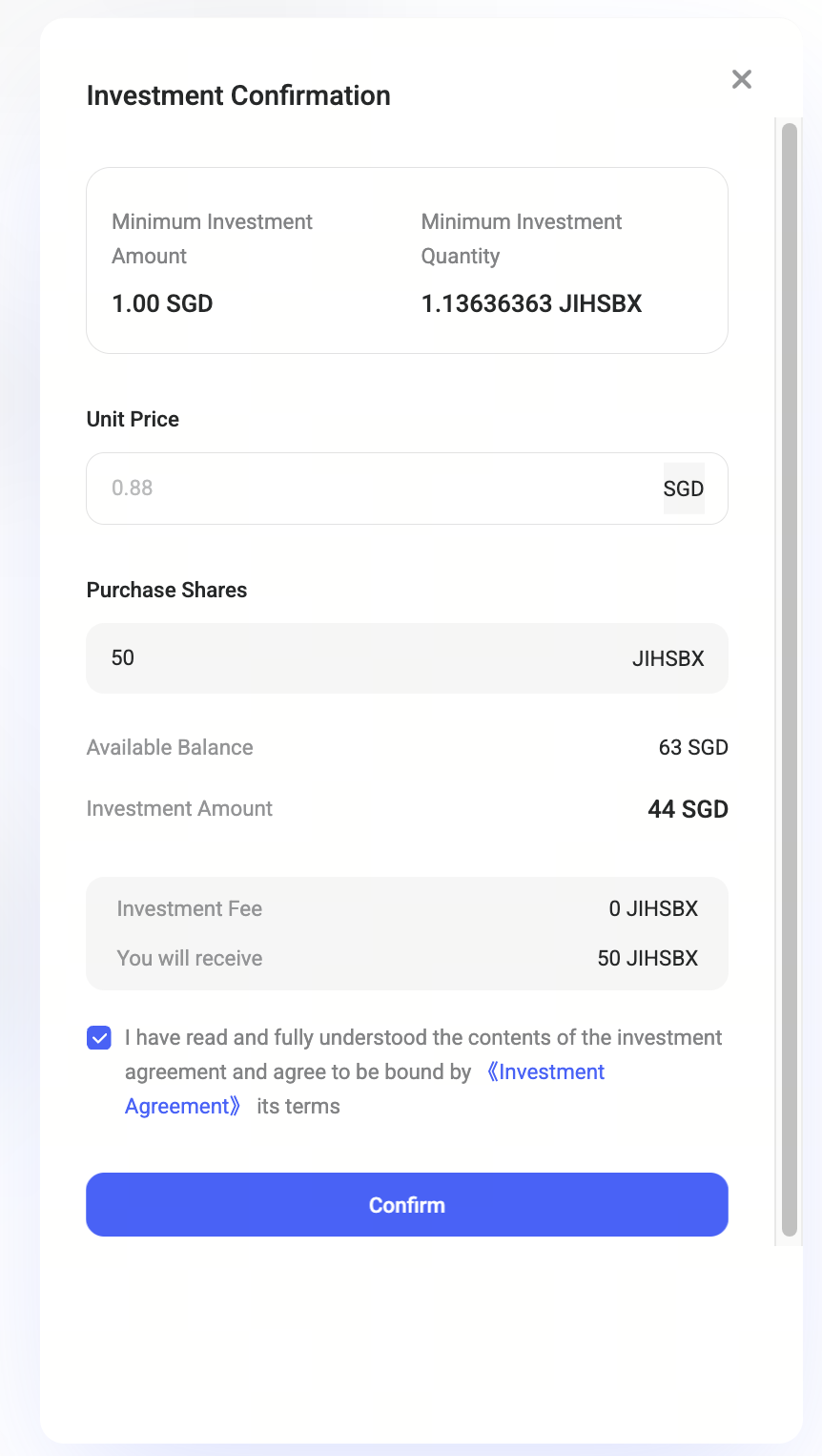
Ensure your account balance is sufficient before proceeding.To invest:
1. Enter the number of units to purchase.
2. Review and accept the investment agreement.
3. Click Invest and follow the prompts to complete the subscription.
Investment fee applies.
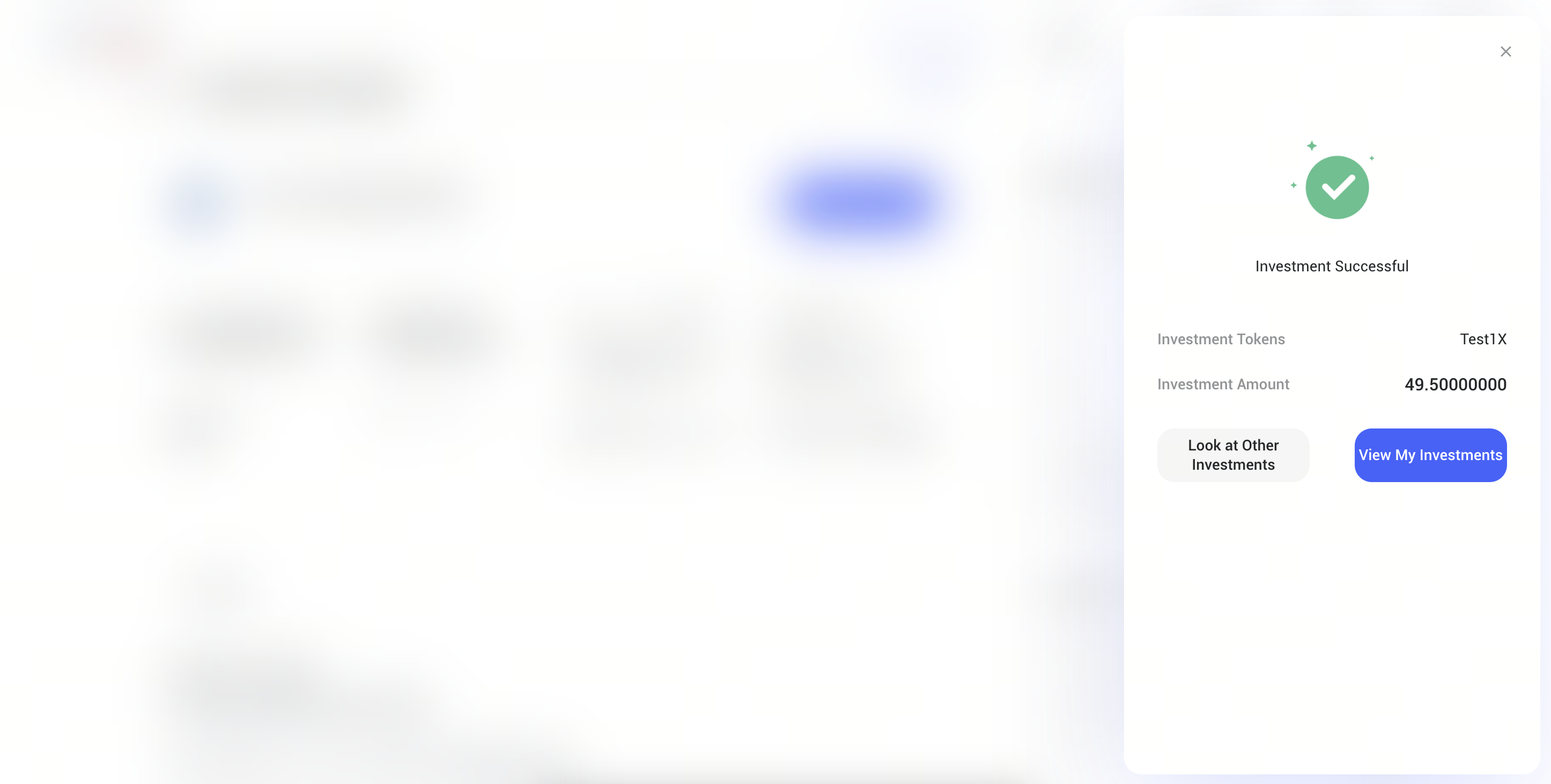
After you submit an order, 1exchange (1X) will prepare the required documents to proceed with the order.
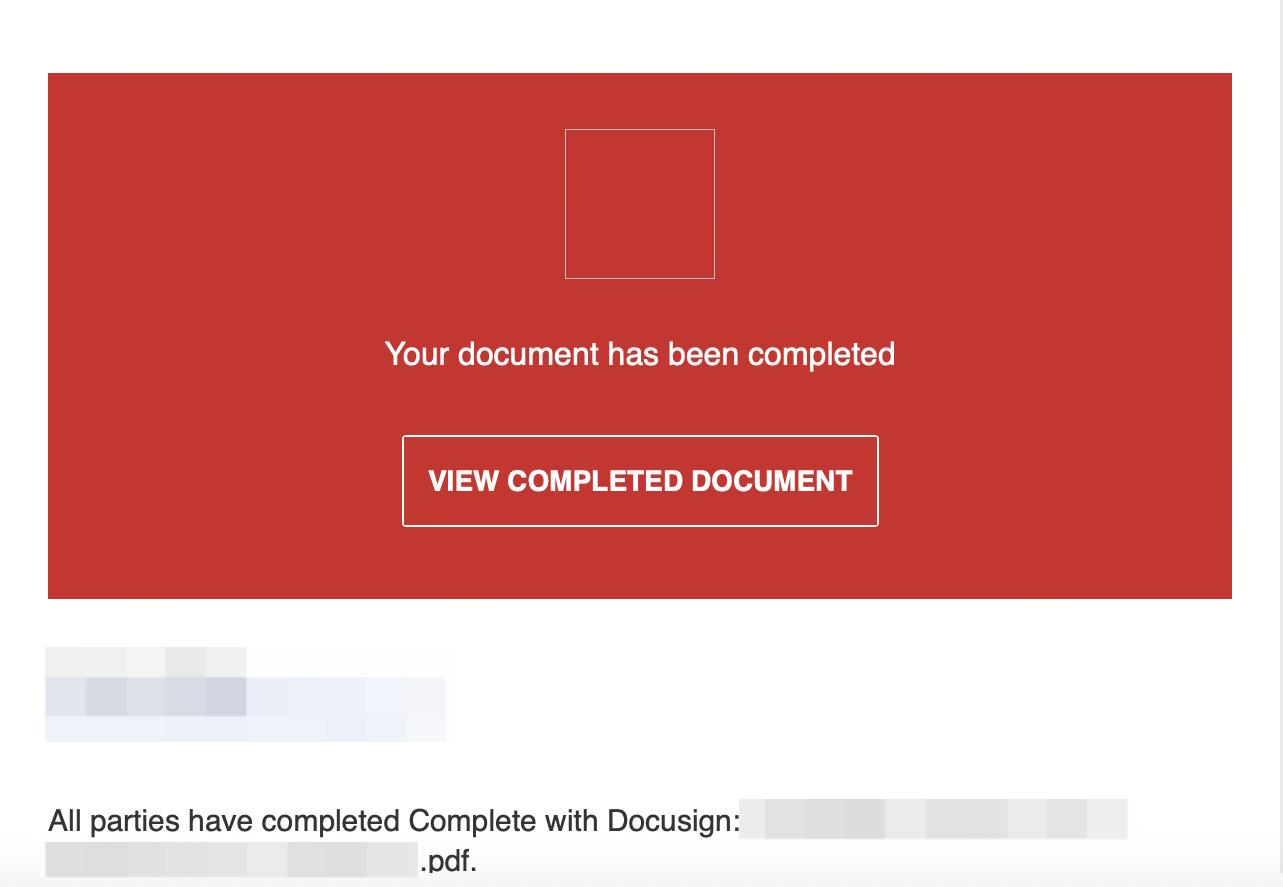
You will then receive an email from DocuSign. Please complete the signature on the DocuSign signing page.
Once the signature is completed, the order will be approved in the portal.
You may view details under My Investments for investment status.
To place an order:
1. Select the desired Trading Pairs, review the orders in the Market Orders
2. Enter the desired quantity and price.
3. Click Buy or Sell to submit the order.
Requirements:
• Buy Orders: Sufficient balance in Available Balance.
• Sell Orders: Sufficient asset units in Available Balance.
*transaction fee applies.
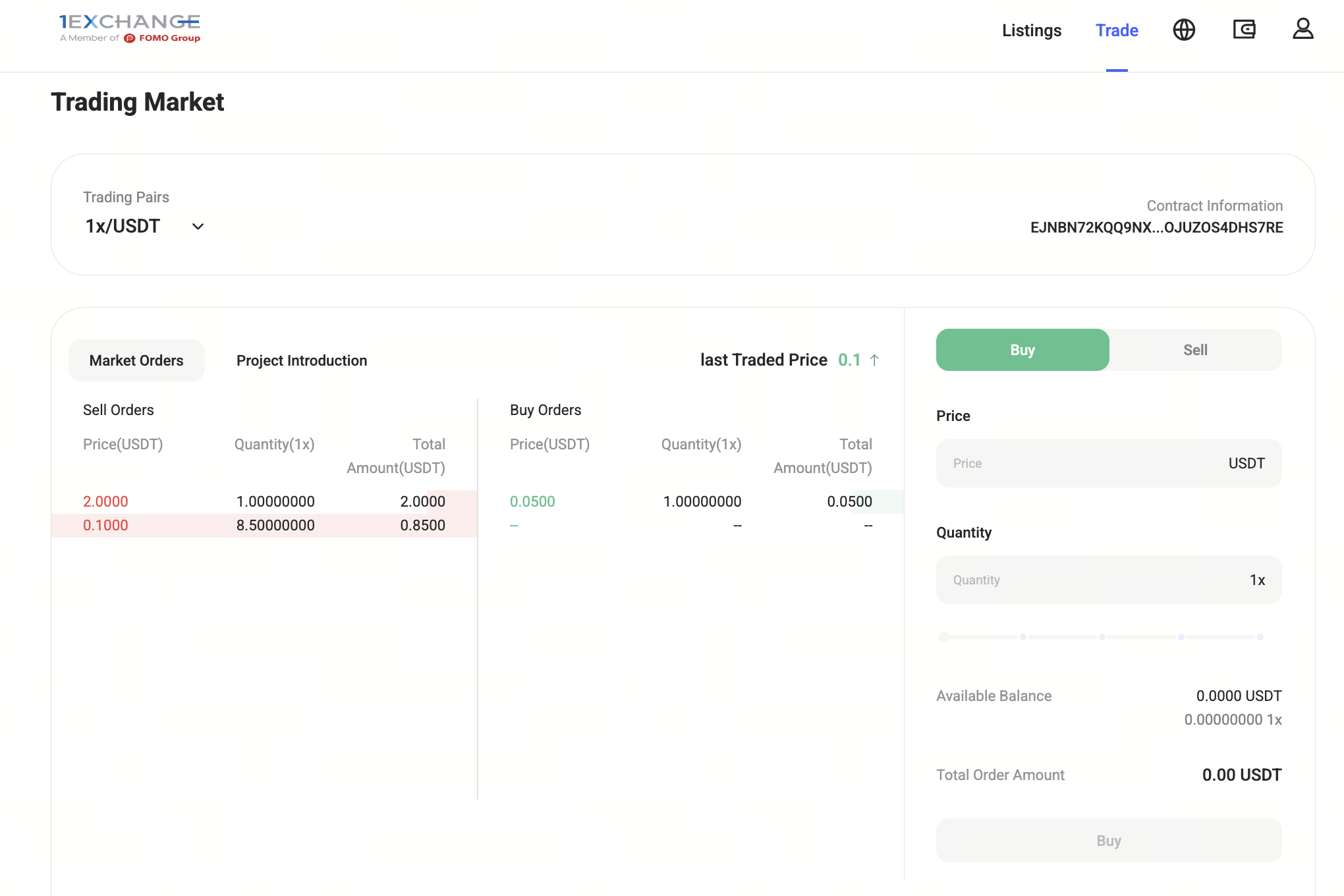
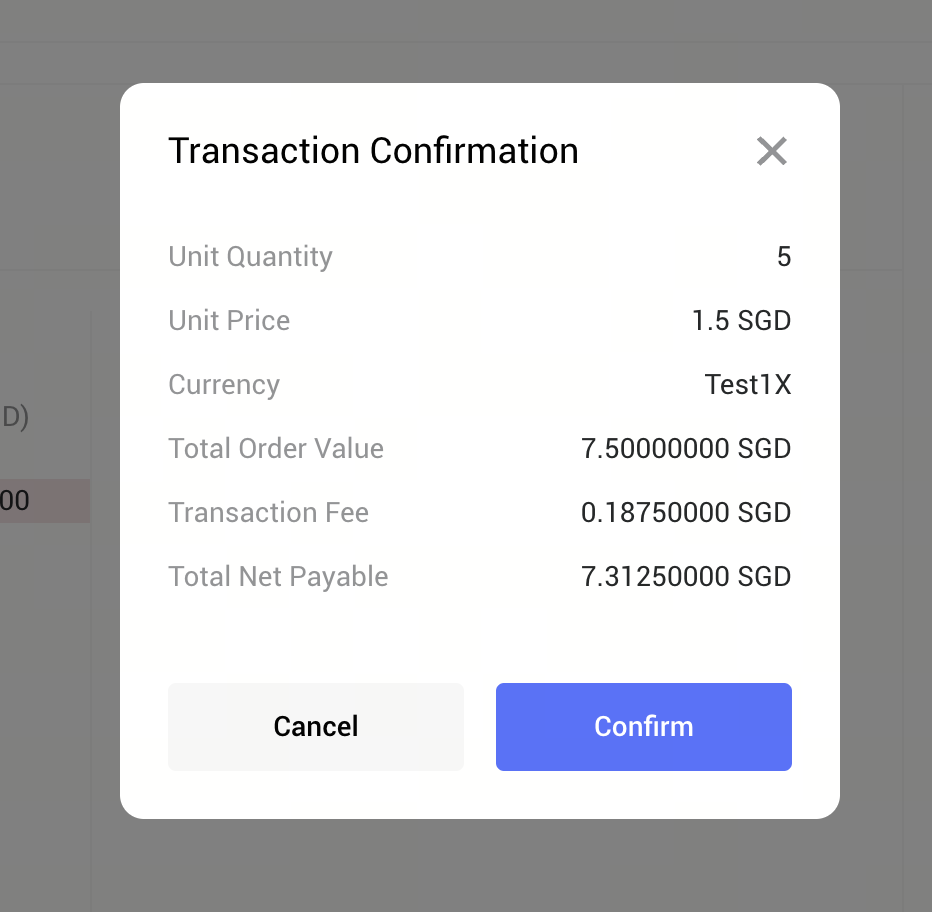
Your order will create a new trade record under the Current Trade tab if it does not match any price and quantity in the Market Order.

Under Current Trade, you may cancel open orders. Successfully cancelled orders will appear in Historical Trade with an updated status.
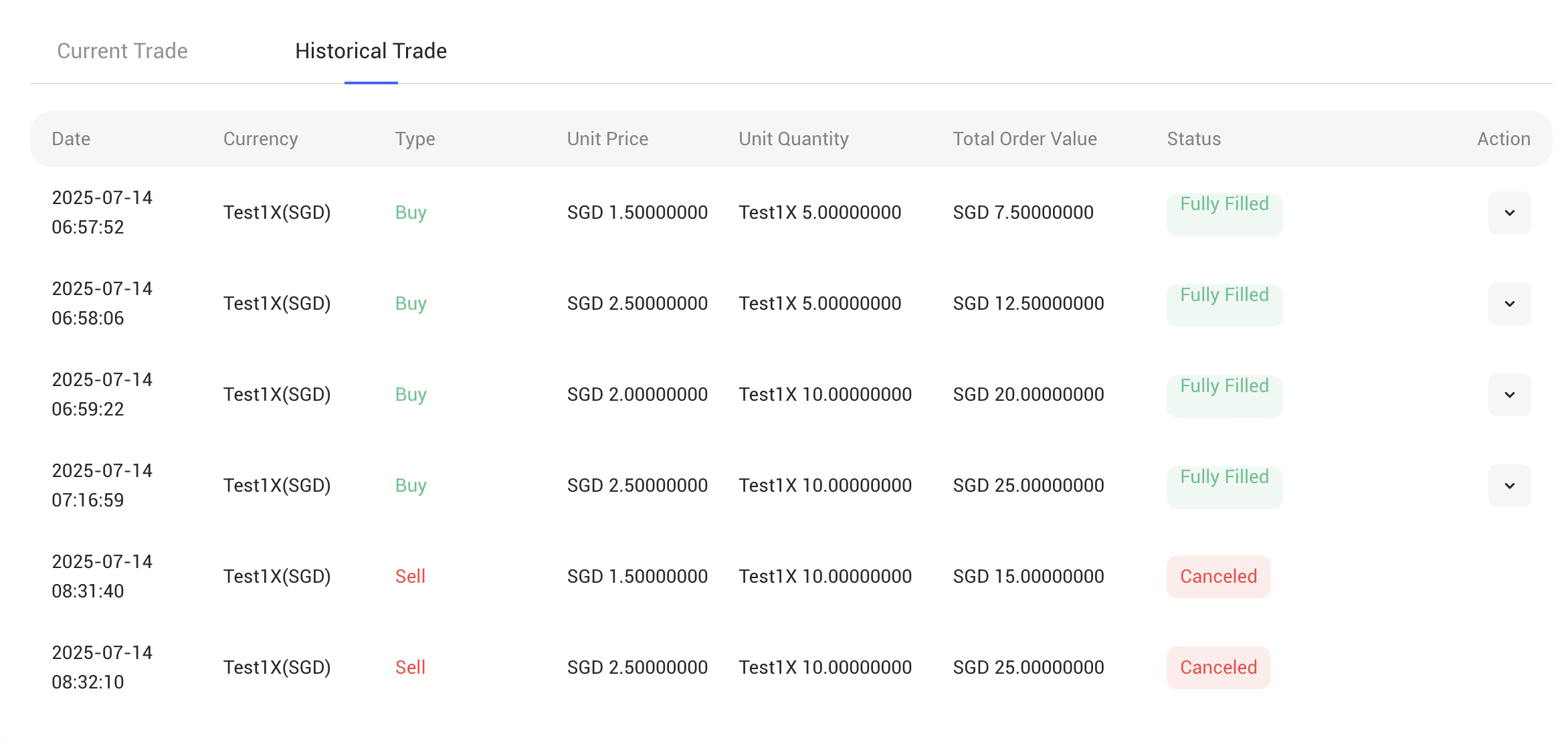
Under Current Trade, you may view all the ongoing orders.
If your offered price matches someone's selling price in the Market Order, the Buy Order will automatically fill with matched units; conversely, if your selling price matches someone's offered price in the Market Order, the Sell Order will automatically fill with matched units. The status of a trade indicates the progress of how many units have been successfully traded.
The order will close and move to Historical Trade only if all buying/selling units are filled.
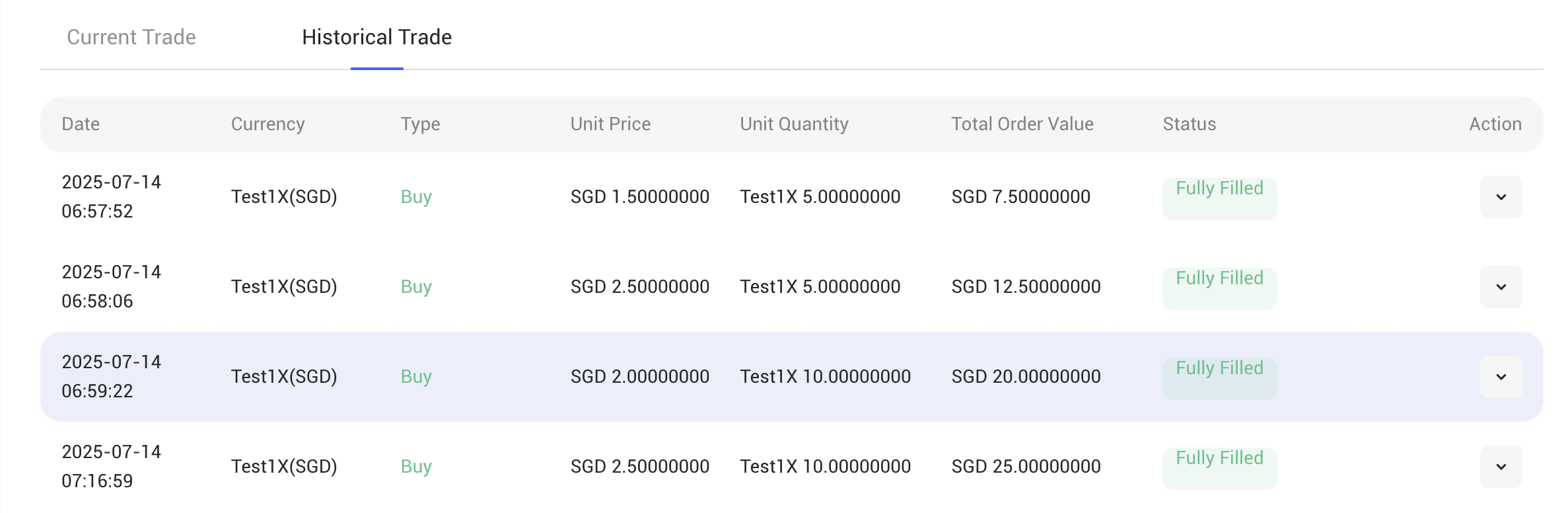
Under Historical Trade, you can view orders that have been fully filled or canceled.
You may select your preferred display language (English or Simplified Chinese) in the Language settings section.